

Saving a video used to depend heavily on what device you were using — a method that worked fine on a laptop might not work at all on a phone, and vice versa. A browser-based downloader removes most of that inconsistency, since the same basic workflow works across devices. This guide walks through exactly how to save videos on each device type, along with the small differences worth knowing about.
The Basic Process, Across Any Device
Regardless of whether you're on a phone, tablet, or computer, the core steps are the same:
Copy the public video link from the platform's share option.
Open your browser and go to a video downloader workspace.
Paste the link and let it validate the source.
Download the file through your browser's normal download handling.
The difference between devices isn't the process itself — it's where the downloaded file ends up afterward and how you access it.
Saving Videos on a Computer
On desktop, downloads typically land in your browser's default "Downloads" folder, usually located within your user directory. From there, you can move the file wherever you like, rename it, organize it into folders, or open it directly in your default media player. This is generally the most straightforward environment for saving videos, since desktop browsers give you full control over file handling and storage location. If you download videos regularly for work or editing projects, it's worth creating a dedicated folder structure — for example, organizing by project or date — so files don't pile up in one generic Downloads folder over time.
A quick tip: most desktop browsers let you change the default download location in settings, which can save you the step of manually moving files afterward if you always save to the same place.
Saving Videos on a Phone
Mobile is where people run into the most confusion, mainly because phone browsers handle downloads differently depending on the operating system.
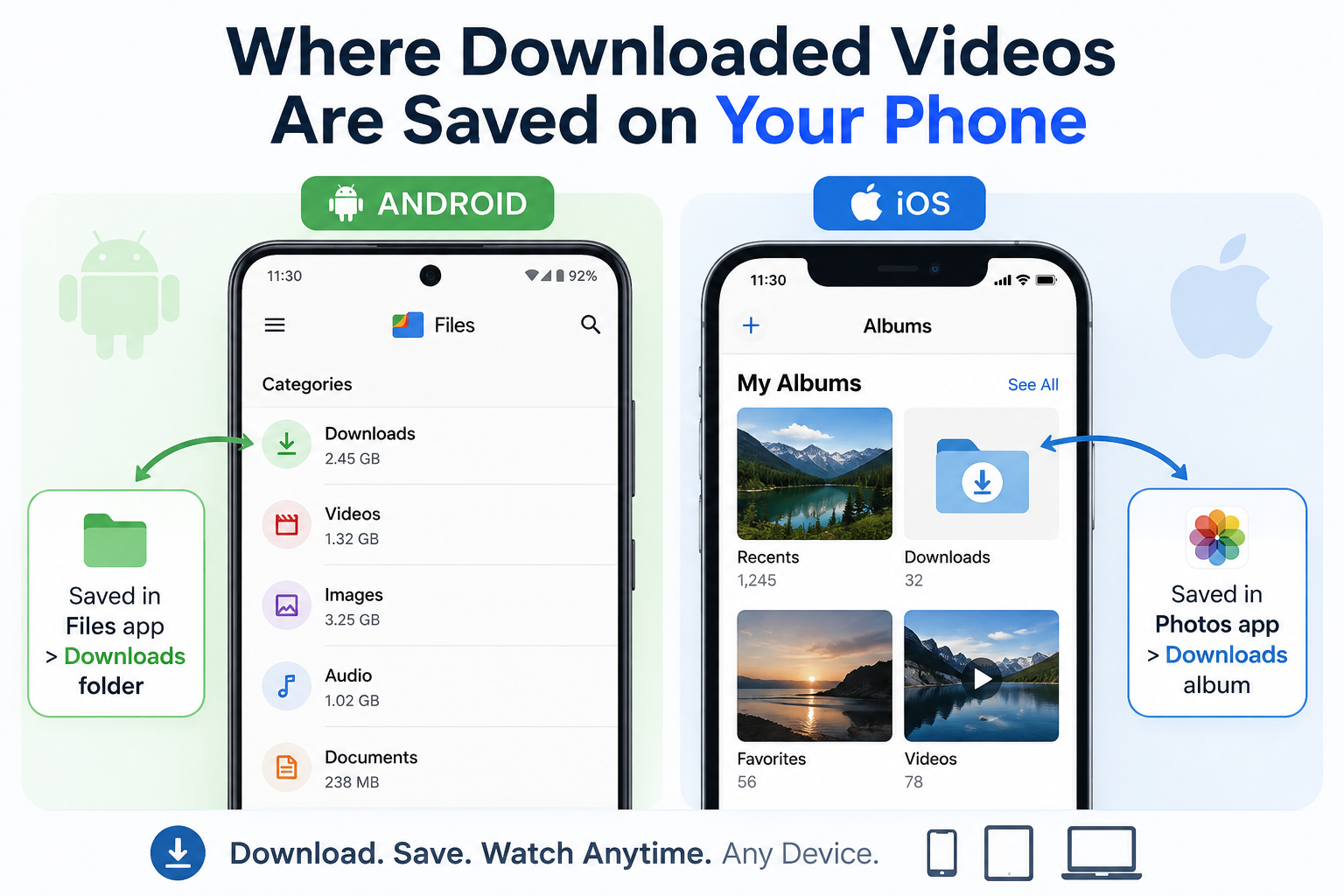
On Android: downloaded files usually save to a "Downloads" folder, accessible either through your file manager app or, for video files specifically, sometimes directly through your gallery app depending on how the file was saved. Android's more open file system generally makes this process fairly predictable once you know where to look.
On iOS (iPhone/iPad): downloads typically route to the Files app rather than directly into your Photos library. If you want the video to appear in your camera roll alongside your other photos and videos, you often need to manually save it from the Files app into Photos using the share sheet. This extra step trips up a lot of first-time users, since it's not always obvious that Files and Photos are separate destinations. A responsive, browser-based downloader — one that's genuinely designed to work properly on mobile, not just a shrunken version of a desktop layout — makes this whole process noticeably smoother, since the download button behaves predictably instead of triggering unexpected app switches or broken links.
Saving Videos on a Tablet
Tablets generally follow whichever mobile operating system they run — iPadOS behaves similarly to iOS, and Android tablets follow the same pattern as Android phones. The same considerations from the phone section above apply here. The larger screen does make file management noticeably easier afterward, particularly if you're downloading and organizing several videos in one sitting. Split-screen multitasking on tablets can also make it easier to have your downloader open alongside a file manager, letting you confirm a download completed successfully without fully switching apps.
Why the Tool You Use Matters Across Devices
This is where a lot of downloader sites fall short — they're built and tested primarily for desktop, and mobile becomes an afterthought with cramped buttons, tiny tap targets, or layouts that break on smaller screens.
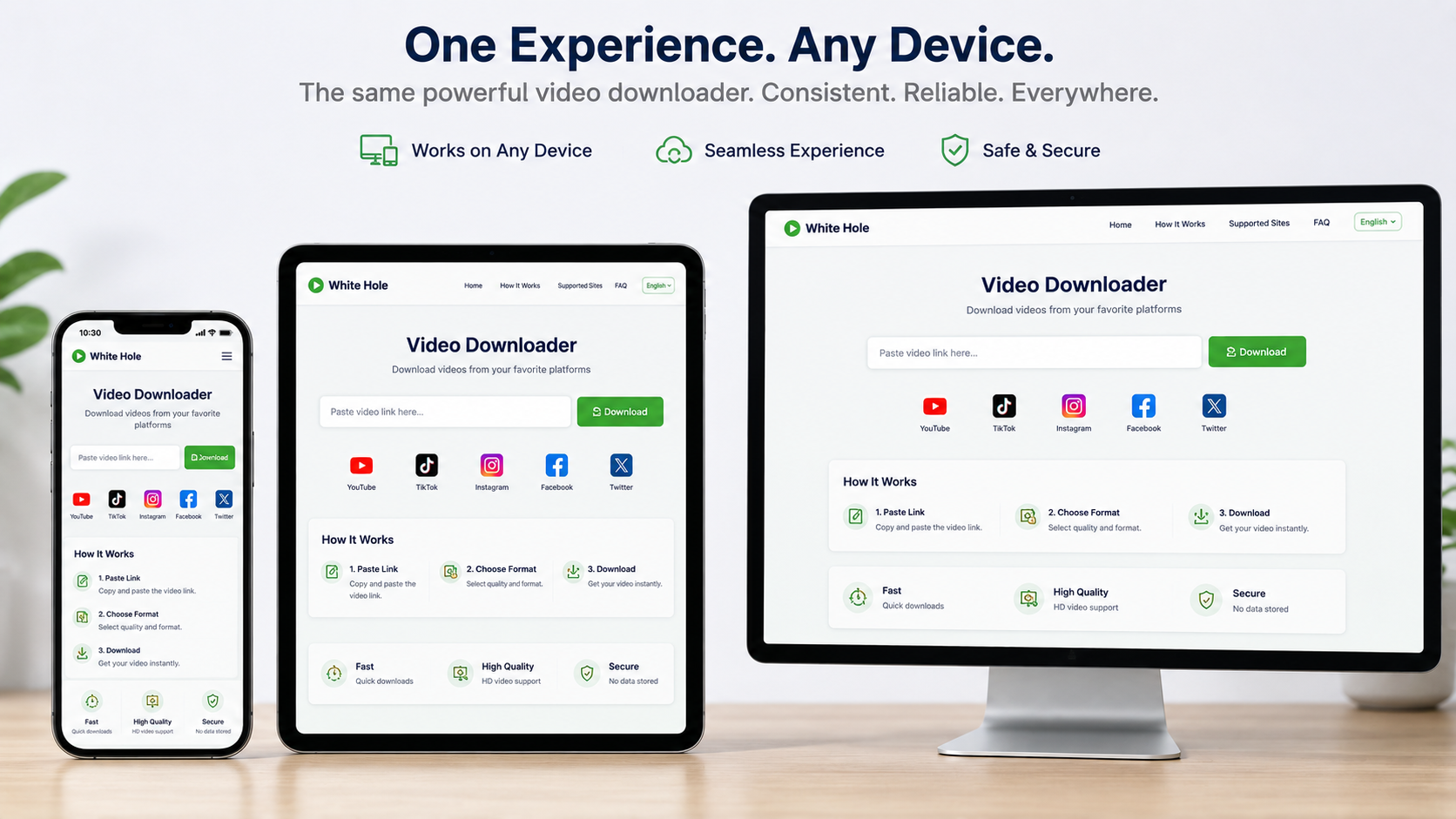
White Hole was specifically designed to hold up across devices. The interface keeps the core actions — paste, search, download — accessible and consistent whether you're on a phone, tablet, or desktop browser, and it's built to work reliably across Chrome, Firefox, Safari, Edge, Opera, and Brave regardless of which device you're using.
Managing Storage Across Devices
Video files, especially in HD or 4K, can take up significant space quickly — something worth planning for, particularly on mobile devices where storage is often more limited than on a computer.
A few practical habits help:
Download in the resolution you actually need. If you're just watching on a phone screen, a full 4K download may be unnecessarily large.
Move files off your phone periodically, either to cloud storage or a computer, if you're downloading regularly.
Delete duplicates. It's easy to accidentally download the same video twice across different sessions if you're not tracking what you've already saved.
Using Recent History to Stay Organized
One underrated feature worth looking for in a downloader is a lightweight recent-history function — a way to quickly revisit a file you downloaded recently without needing to search for the original link again. This is especially useful on mobile, where re-finding a specific post you downloaded a few days ago can otherwise mean scrolling back through an app's feed or search history. A local, browser-based history (not tied to an account) offers this convenience without requiring you to sign in or hand over personal information.
Troubleshooting Device-Specific Download Issues
"I can't find my downloaded file on iPhone." Check the Files app first, under "Downloads" or "On My iPhone," rather than assuming it will automatically appear in Photos.
"The download button doesn't do anything on my phone browser." This is often a sign the downloader wasn't built with mobile in mind. Try switching to a tool specifically designed to be responsive across devices.
"My tablet downloads open in a new app instead of saving." This can happen if the browser is trying to preview the file rather than download it — look for a dedicated "download" or "save" action rather than tapping the file link directly.
Syncing Downloaded Videos Across Devices
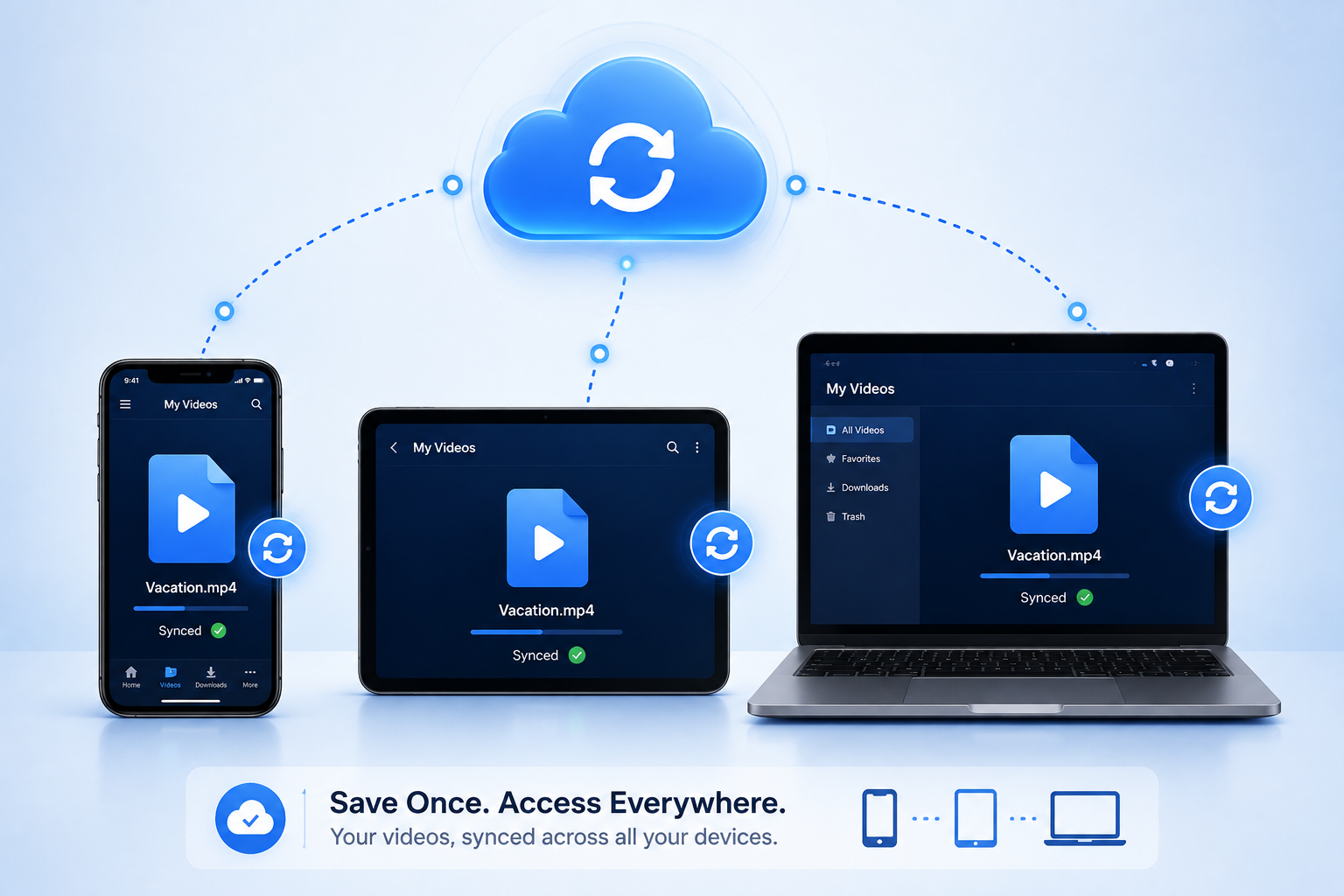
If you regularly switch between a phone, tablet, and computer, it's worth setting up a simple sync habit rather than downloading the same video separately on each device. Most cloud storage services (whichever you already use) let you upload a downloaded file from one device and access it from the others automatically. This is particularly useful for larger 4K files, where re-downloading the same video on multiple devices wastes both time and mobile data. A simple approach: download once on whichever device is most convenient, then move the file into a synced folder for access everywhere else.
Adjusting Browser Download Settings for a Smoother Experience
A few small browser settings can make saving videos noticeably easier, regardless of device:
Enable "ask where to save each file" on desktop browsers if you want more control over folder organization, rather than everything defaulting to one location.
Check your browser's download permissions on mobile, since some mobile browsers require you to explicitly allow downloads or file access the first time you use a downloader tool.
Clear old downloads periodically from your browser's download manager, especially on mobile where storage tends to be more limited.
Use your browser's built-in download history (separate from any tool-specific recent history) as a backup way to relocate a file if you're not sure exactly where it landed.
These are one-time adjustments that make every future download, from any tool, noticeably less frustrating to manage.
Frequently Asked Questions
Do I need a different tool for phone versus computer downloads?
No — a well-built browser-based downloader like White Hole works consistently across both, since the same interface adapts to your device.
Why do my downloads disappear on iPhone?
They're usually not gone — they're most likely sitting in the Files app rather than Photos, since iOS treats these as separate locations by default.
Can I download videos on a tablet the same way as a phone?
Yes, the process is identical since tablets run the same mobile operating systems as phones.
Is there a storage limit for downloaded videos?
Only whatever your device's available storage allows — there's no limit imposed by the downloader tool itself, though higher resolutions will use more space per file.
Final Thoughts
The device you're on shouldn't determine whether downloading a video is easy or frustrating. With a properly responsive, browser-based downloader like White Hole, the same simple flow — paste, validate, download — works whether you're at your desk or on your phone, with the only real difference being where your operating system decides to put the finished file.