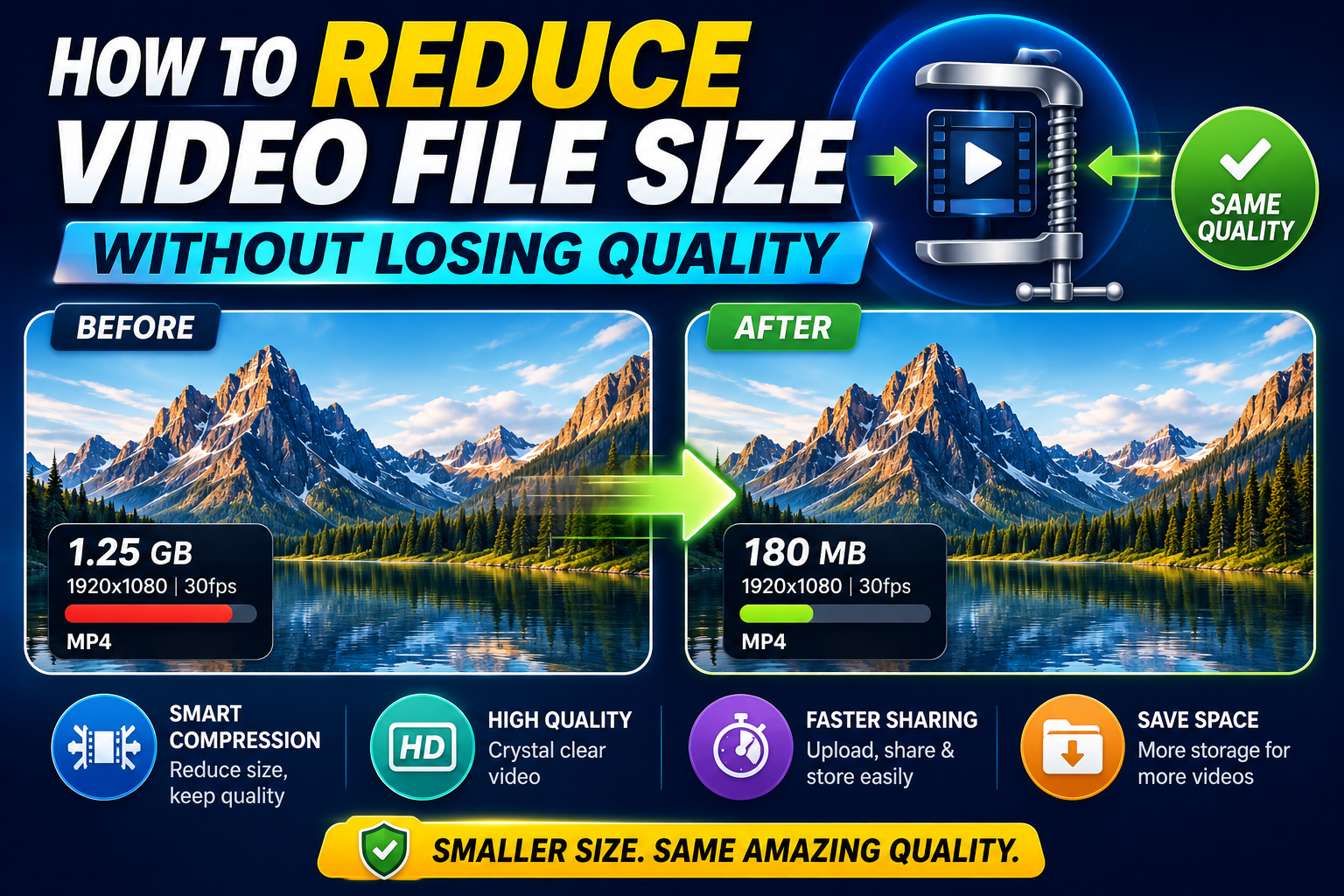
Large video files eat up storage fast, and not everyone has unlimited space or bandwidth to work with. The good news is that reducing file size doesn't have to mean a visibly worse video — done correctly, you can shrink a file meaningfully while keeping it looking nearly identical. Here's how that actually works.
Understanding Where File Size Comes From
Video file size is primarily determined by three factors: resolution, bitrate, and duration. Duration is fixed by the content itself, but resolution and bitrate are both adjustable, and understanding how each affects the final file helps you make smarter compression choices rather than blindly shrinking everything and hoping for the best.
Resolution determines how many pixels are in each frame — more pixels mean more data, and therefore a larger file.
Bitrate determines how much data is used to encode each second of video — higher bitrate preserves more detail but produces a larger file.
The trick to reducing file size "without losing quality" is finding the point where you're not paying for pixels or bitrate that aren't actually contributing to a noticeably better viewing experience for your specific use case.
Method 1: Choose an Efficient Codec
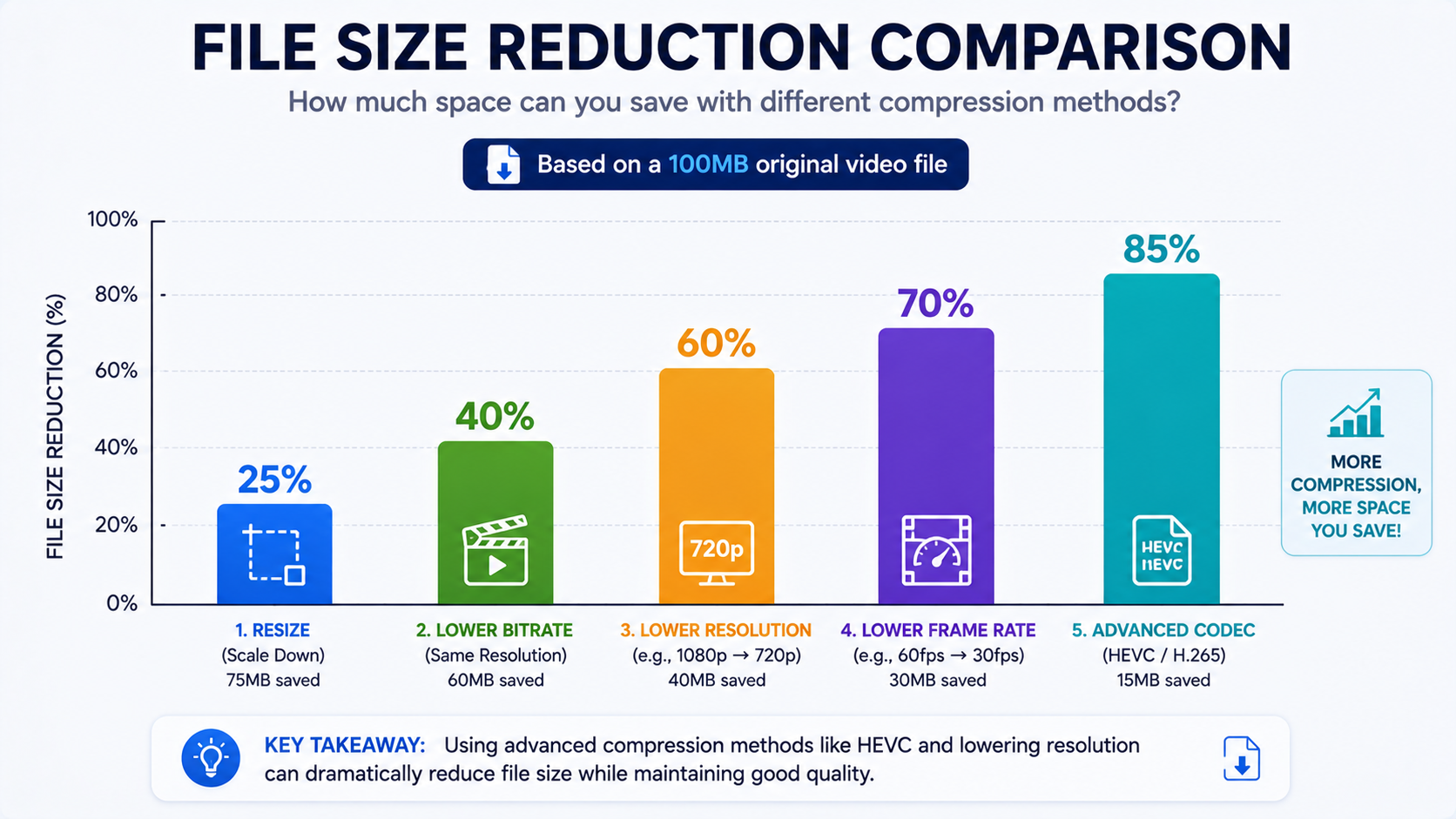
Not all codecs compress equally well. Newer codecs like H.265 (HEVC) and AV1 can achieve similar visual quality to older codecs like H.264 at meaningfully smaller file sizes, since they use more advanced compression techniques. If file size matters and your playback device supports it, choosing a more modern, efficient codec is often the single biggest lever for reducing size without a visible quality trade-off.
Method 2: Reduce Resolution Only When It Won't Be Noticed
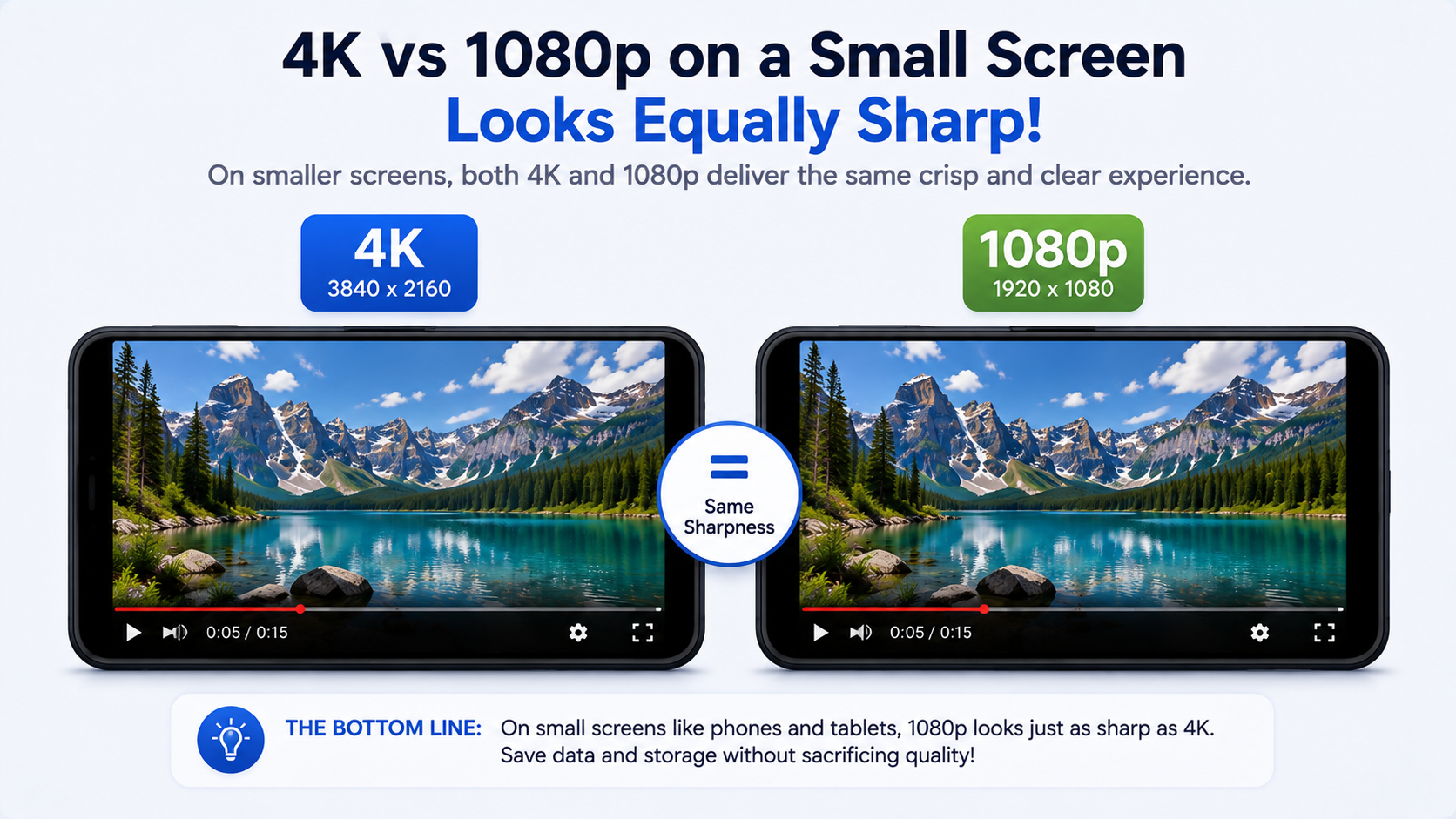
If you're planning to watch a video primarily on a phone or smaller screen, downloading or converting to 1080p instead of 4K can cut file size dramatically, often to a quarter of the original size, with minimal visible difference given the smaller screen. This only counts as "without losing quality" in a meaningful sense if the resolution reduction genuinely won't be noticeable for how you'll actually use the file — reducing a video you plan to edit or view on a large screen is a different calculation.
Method 3: Adjust Bitrate Thoughtfully, Not Aggressively
If you're compressing a video yourself using editing or conversion software, small to moderate bitrate reductions are often nearly invisible, while large reductions introduce visible artifacts quickly. A reasonable approach is reducing bitrate incrementally and checking the result at each step, rather than applying an aggressive one-size-fits-all compression setting that might work for a static talking-head video but destroy the quality of fast-motion footage.
Method 4: Trim Unnecessary Footage
Sometimes the most straightforward way to reduce file size is simply cutting content you don't need. If you only need a specific segment of a longer video, trimming it down reduces file size proportionally without any compression trade-off at all, since you're removing duration rather than degrading quality.
Method 5: Avoid Unnecessary Re-Encoding in the First Place
This is a step earlier in the process than most file-size guides address: if you're downloading a video rather than recording it yourself, choosing a downloader that avoids unnecessary compression during the download process means you're starting from a properly sized file rather than one that's already been bloated or degraded by a poorly optimized tool. White Hole, for instance, preserves the original stream without adding extra re-encoding steps, giving you an accurate, efficient starting point before you decide whether any further size reduction is actually needed.
What Actually Causes Visible Quality Loss During Compression
Understanding this helps you avoid it:
Reducing bitrate too aggressively relative to the resolution and content complexity.
Compressing fast-motion footage using settings tuned for static content, which struggles to keep up with rapidly changing detail.
Repeated compression — compressing an already-compressed file multiple times compounds quality loss each time.
Using outdated or inefficient codecs that require a higher bitrate to achieve the same quality a modern codec could deliver at a smaller size.
A Practical Comparison
Approach | File Size Reduction | Visible Quality Impact |
|---|---|---|
Switch to a more efficient codec | Significant | Minimal to none |
Reduce resolution for small screen use | Moderate | Minimal, if viewed on a small screen |
Moderate bitrate reduction | Moderate | Minimal if done carefully |
Aggressive bitrate reduction | Large | Noticeable artifacts likely |
Trim unneeded footage | Proportional to cut length | None |
When Reducing File Size Isn't Worth It
It's worth being honest that not every situation calls for shrinking a file. If storage genuinely isn't a constraint, and you might want to edit or repurpose the footage later, keeping the highest-quality version available gives you more flexibility down the line. You can always compress a high-quality file later for a specific purpose, but you can't recover detail from a file that's already been aggressively compressed.
Tools Commonly Used for Compression
If you decide to compress a file yourself after downloading, there are a range of options depending on your comfort level with technical tools. Basic video editing apps, including many built into phones and computers by default, often include an export or "save as" option with adjustable quality settings. Dedicated compression software offers more granular control over bitrate, codec, and resolution simultaneously, useful if you're regularly compressing content for a specific purpose like web upload size limits. Whichever tool you use, the same underlying principles apply: moderate, thoughtful adjustments preserve quality far better than aggressive, one-size-fits-all presets.
A Simple Before-You-Compress Checklist
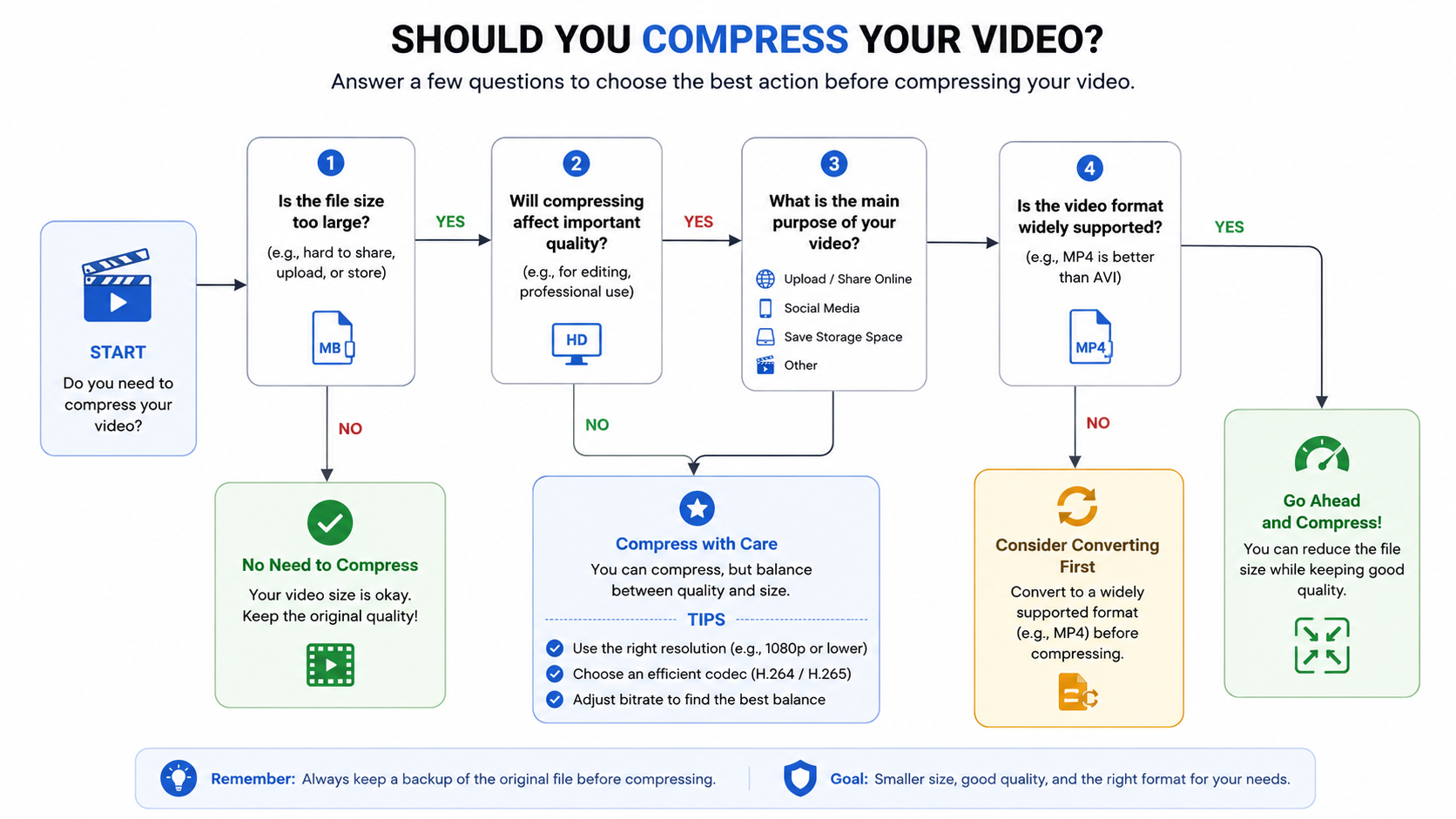
Before reducing any file's size, it helps to quickly answer a few questions to guide your approach:
What will this file actually be used for? Casual sharing, archiving, or professional editing each call for different compromises.
What's the smallest screen this will realistically be viewed on? This tells you how much resolution reduction, if any, will actually be noticeable.
Do you have the original, uncompressed source saved elsewhere? If so, you have more freedom to compress aggressively for a specific purpose, knowing you can always start fresh from the original later.
Is this a one-time need or something you'll do regularly? Regular compression needs are worth investing a bit more time into finding the right settings, since you'll benefit from that decision repeatedly.
Frequently Asked Questions
Can I reduce file size without any quality loss at all?
Some methods, like trimming footage or switching to a more efficient codec, can reduce size with essentially no visible quality impact. Others, like aggressive bitrate reduction, involve a genuine trade-off.
What's the easiest way to shrink a video file for casual sharing?
Reducing resolution to match the viewing device (1080p for most everyday sharing) combined with a moderate, not aggressive, bitrate reduction usually provides a good balance.
Does compressing a video multiple times make it worse each time?
Yes — repeated lossy compression compounds quality loss with each pass, so it's best to compress from the highest-quality original you have, only once, for your intended final use.
Does the video downloader I use affect file size?
Yes — a downloader that re-encodes files unnecessarily can produce a larger or lower-quality file than one that preserves the original stream efficiently.
Final Thoughts
Reducing video file size without sacrificing quality is entirely possible when you understand what's actually driving the size in the first place — resolution, bitrate, and codec choice. Starting from a properly preserved, uncompressed-by-default download (like what White Hole provides) gives you the cleanest possible starting point, whether or not you decide any further size reduction is actually necessary.