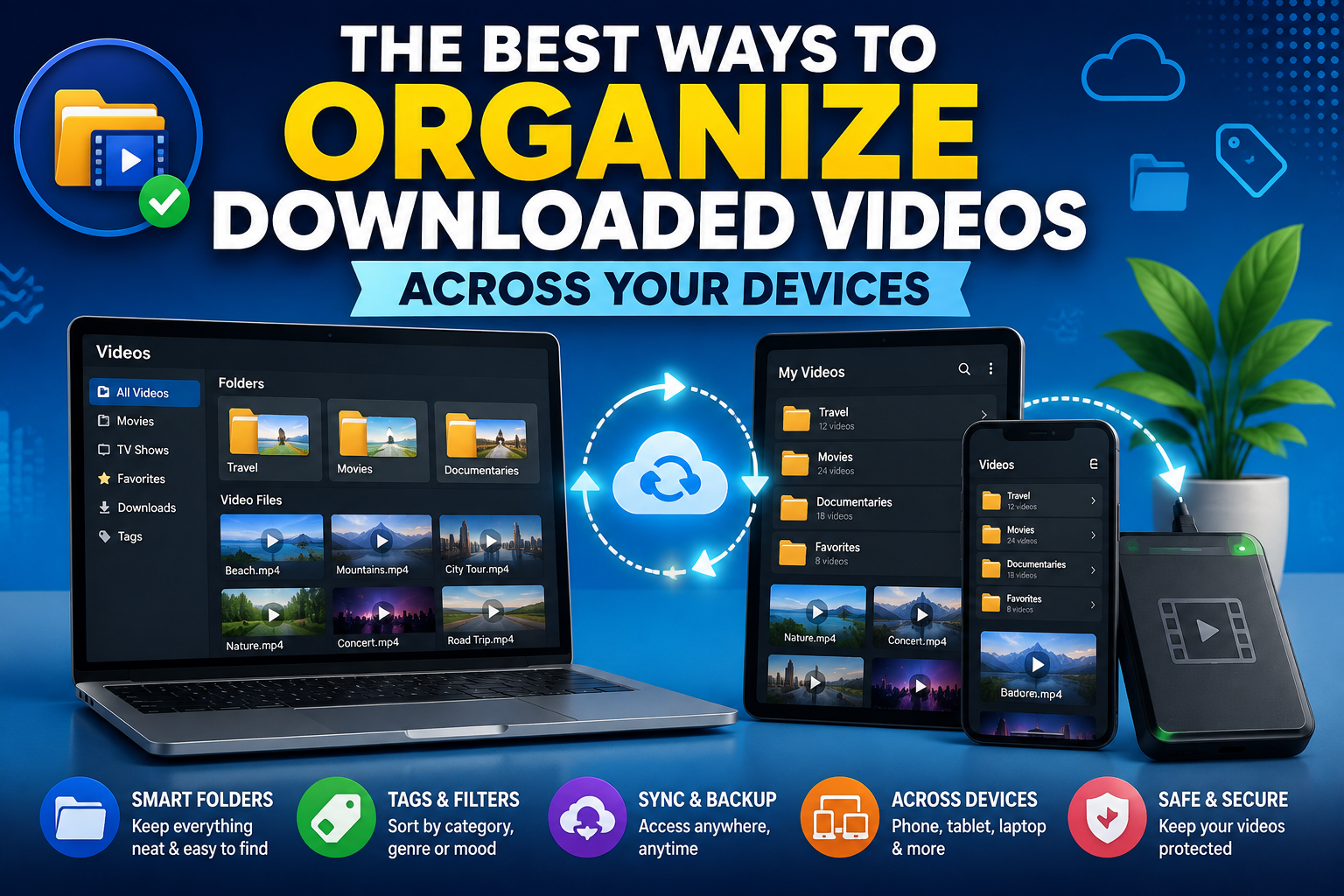
Downloading a video is the easy part. Finding it again three weeks later, especially if you regularly save clips across multiple devices, is where things tend to fall apart. A little bit of organization upfront saves a lot of frustrated searching later — here's a practical system for keeping downloaded videos manageable across every device you use.
Why Organization Becomes a Problem
Most people don't think about organization until their Downloads folder becomes an unsearchable pile of generically named files — "video (3).mp4," "download.mp4," and so on. This happens naturally over time, since default downloader behavior usually just uses whatever filename the source provides, which often isn't descriptive at all. The problem compounds across devices: a video downloaded on your phone doesn't automatically appear on your computer, and vice versa, leading to duplicated effort or, worse, videos you simply can't find again when you need them.
Building a Simple Folder Structure
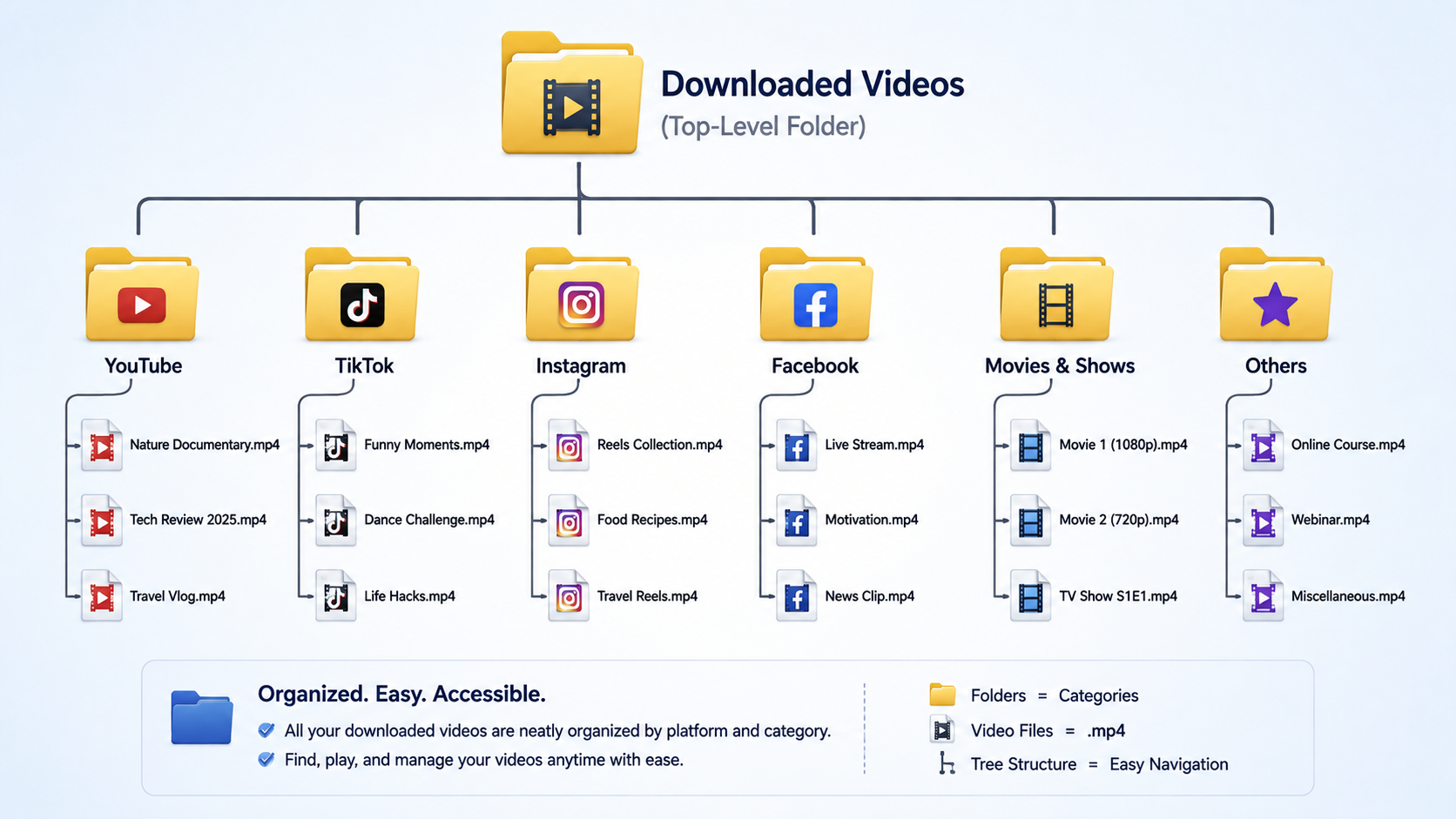
The single most effective habit is creating a consistent folder structure before you need it, rather than trying to retroactively organize hundreds of files later.
A simple structure that works for most people:
A top-level "Downloaded Videos" folder.
Subfolders by category — for example, "Tutorials," "Reference Clips," "Personal Backups," "Projects."
Within project-specific folders, subfolders by date or project name if you're working on something with a defined timeline.
The exact categories matter less than having any consistent structure you actually stick to, rather than letting everything pile into one generic folder.
Naming Files Consistently
Default filenames are rarely useful for finding something later. A quick renaming habit — even just adding a short, descriptive prefix — makes a huge difference:
Instead of "video.mp4," try "2026-tutorial-video-editing-basics.mp4."
Include the source or creator name if that's how you're likely to remember it later: "creator-name-topic.mp4."
Keep a consistent date format (year-month-day) so files sort chronologically by default in any file browser.
This takes a few extra seconds per file but pays off significantly once you're searching through dozens or hundreds of downloads.
Organizing Across Multiple Devices
On your computer: take advantage of your operating system's native folder and tagging features. Both Windows and macOS support custom folder structures and, in some cases, color-coding or tagging files for quick visual sorting.
On your phone: most mobile file managers support basic folder creation, though the process varies more between Android and iOS. On Android, you generally have more flexibility to create custom folders directly within your Downloads or a dedicated app folder. On iOS, the Files app supports folder creation, though you may need to manually move video files there from wherever they initially download.
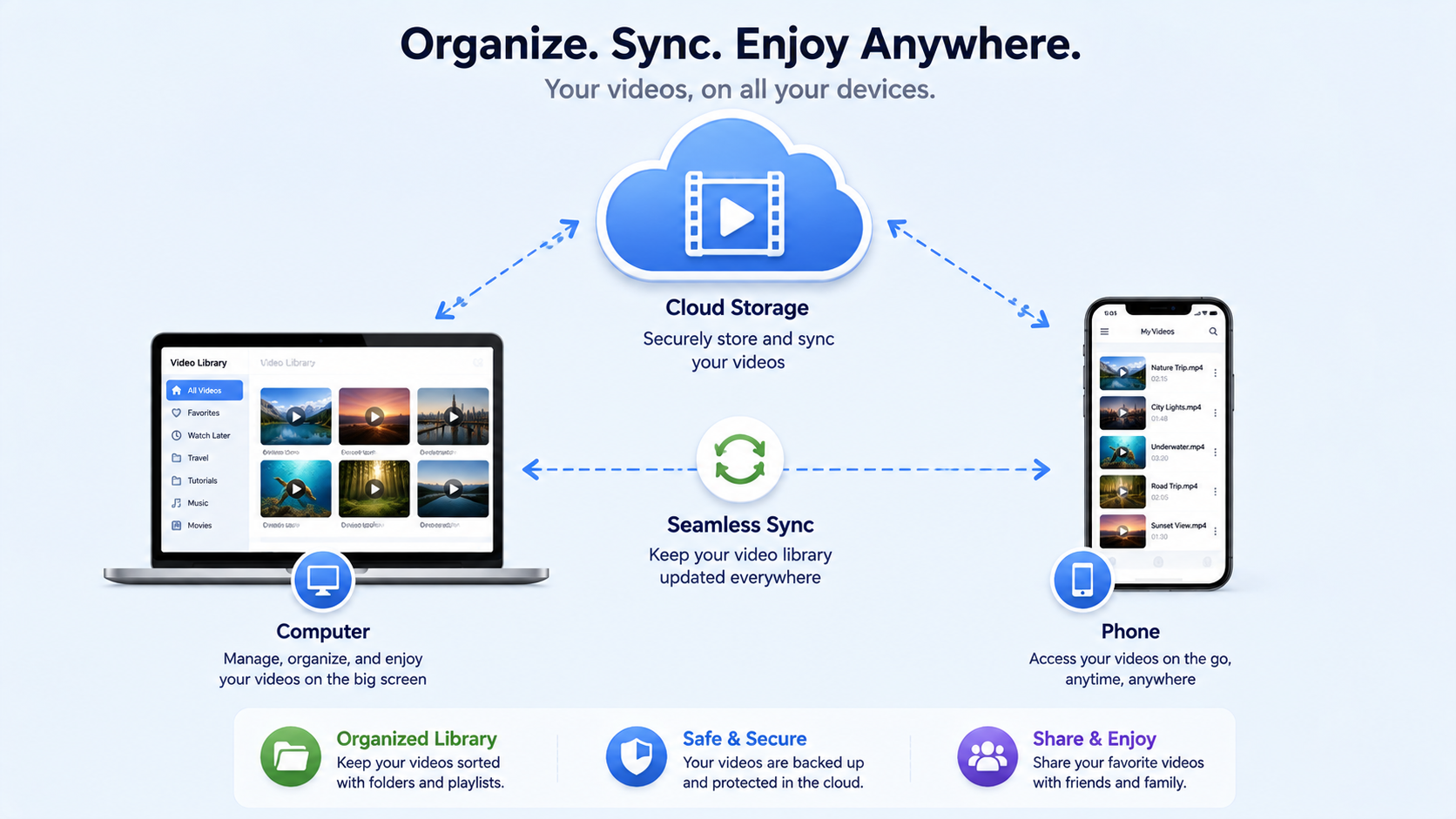
Syncing across devices: rather than downloading the same video separately on multiple devices, use a cloud storage service to move a file from wherever you first downloaded it into a synced folder accessible everywhere else. This is particularly valuable for larger 4K files, where re-downloading on each device wastes both time and, on mobile, potentially significant data.
Using a Downloader's Built-In History
Some video downloader tools include a lightweight recent-history feature that can help with organization indirectly, even before you've moved a file into your permanent folder structure. White Hole, for example, stores a local history of recent downloads directly in your browser, letting you quickly revisit a link you downloaded recently without digging through your Downloads folder or re-searching the original platform. This is especially useful in the window right after downloading, before you've had a chance to properly file the video away.
A Simple Weekly Habit
Rather than organizing every single file the moment you download it, consider setting aside a few minutes weekly to review your Downloads folder, move files into their proper category, rename anything unclear, and delete duplicates or anything you no longer need. This "batch organizing" approach tends to be more sustainable than trying to perfectly file every download in real time, which often gets skipped when you're in a hurry.
Dealing with Duplicate Downloads
It's easy to accidentally download the same video twice, especially across different devices or sessions where you've forgotten you already saved something. A few habits help minimize this:
Check your existing folder structure before re-downloading something you suspect you might already have.
Use consistent naming so duplicates are easy to spot at a glance rather than hidden behind generic filenames.
Periodically sort a folder by file size — identical or near-identical file sizes for similarly named files are a quick way to spot likely duplicates.
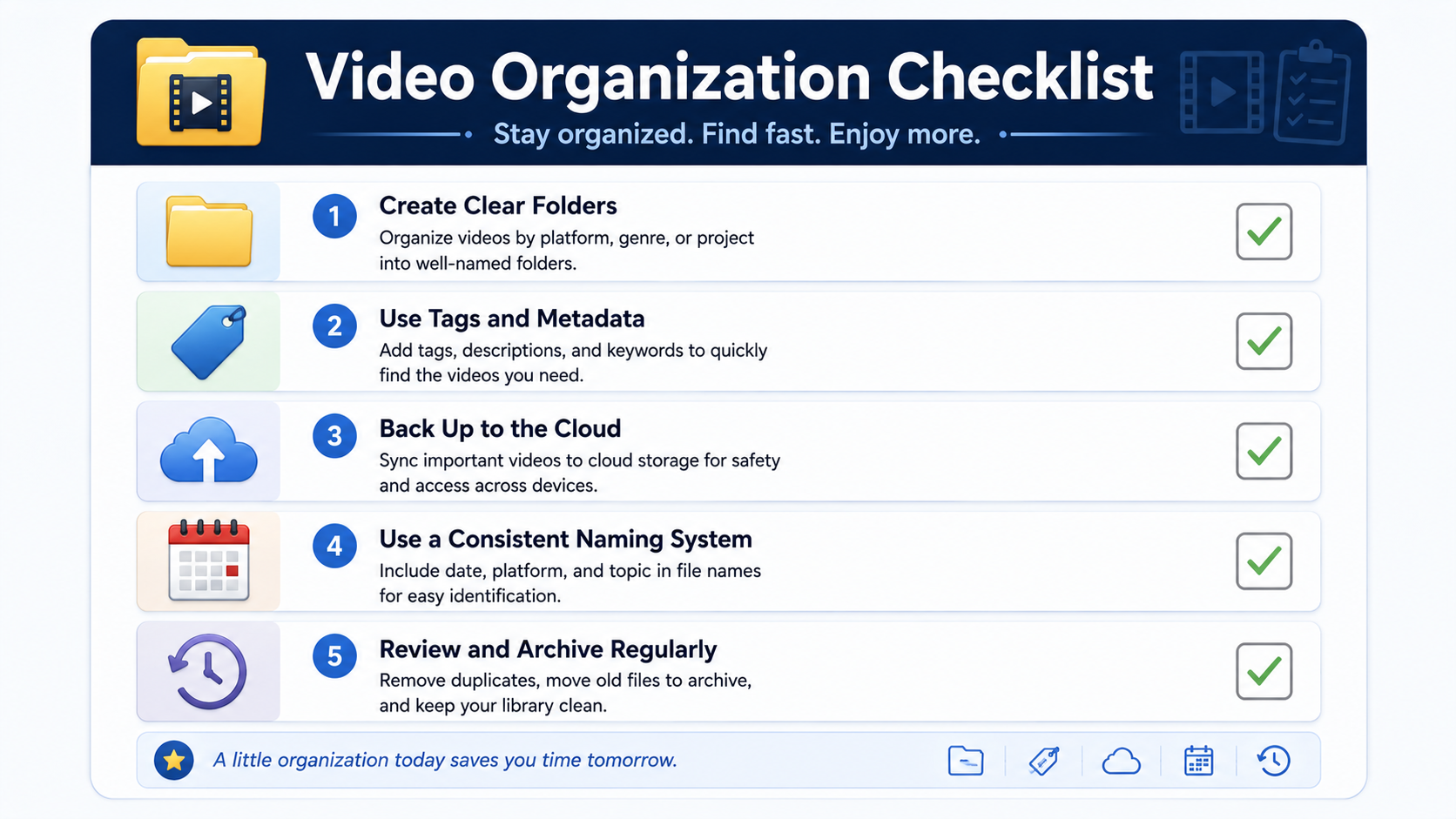
A Quick Organization Checklist
[ ] Set up a top-level "Downloaded Videos" folder with a few broad subcategories.
[ ] Rename files with a short, descriptive name at the time of download, if possible.
[ ] Sync important files to cloud storage if you use multiple devices.
[ ] Review and tidy your Downloads folder on a regular schedule.
[ ] Use a downloader's built-in history for quick, recent re-access before permanent filing.
Tools and Features Worth Using for Organization
Beyond basic folders, a few additional tools can help, depending on how much video content you're managing:
Media library apps. Dedicated media management apps (separate from your basic file manager) can index video files by metadata, generate thumbnails automatically, and let you search by tags rather than relying purely on filenames and folder structure.
Cloud storage folder sharing. If you're organizing videos as part of a team or collaborative project, shared cloud folders with consistent naming conventions agreed upon in advance prevent the chaos of multiple people using different systems for the same set of files.
Browser bookmarking of source links. For videos you download regularly from the same set of creators or platforms, bookmarking the source pages themselves (in addition to organizing the downloaded files) makes it easier to re-download in higher quality later if needed, without having to search for the original content again.
Why This Matters More As You Download More Often
The value of a good organization system compounds over time. If you download videos only occasionally, a loose system is probably fine. But if downloading is a regular part of your workflow — content creation, research, education, reference gathering — the cost of disorganization grows significantly, since the time spent hunting for a specific file eventually outweighs the time it would have taken to organize things properly from the start.
Frequently Asked Questions
What's the simplest way to start organizing if I already have hundreds of unsorted downloads?
Start with broad categories rather than trying to perfectly sort everything at once — a rough first pass into a few folders is far more sustainable than an all-or-nothing perfect system.
Should I rename files immediately after downloading, or later?
Immediately, if possible — it takes only a few extra seconds and prevents the buildup of generically named files that become much harder to sort later.
How do I keep my phone and computer downloads in sync?
Use a cloud storage service to move files into a shared, synced folder rather than downloading the same content separately on each device.
Does White Hole help with organizing downloads?
Its local recent-history feature helps you quickly re-access recently downloaded links, which is useful in the window before you've filed a video into your permanent folder structure.
Final Thoughts
Organization isn't glamorous, but a small amount of upfront structure — consistent folders, descriptive filenames, and a regular tidy-up habit — saves significant frustration later, especially once you're downloading regularly across multiple devices. The goal isn't a perfect system, just a consistent one you'll actually stick to.