There's a specific kind of disappointment in downloading a video, opening it, and finding it looks noticeably worse than what you saw on the original platform. This almost always comes down to how the downloader handled the file — not something wrong with the source itself. This guide covers exactly why resolution gets lost during downloading, and the practical steps to make sure it doesn't happen to you.
Why Resolution Gets Lost in the First Place
Three things typically cause this, and each one is worth understanding on its own.
Re-encoding. Some downloaders convert the video into a different format or bitrate during download, which introduces compression artifacts even if the resolution label technically stays the same. A file can say "1080p" while looking noticeably softer than a properly preserved 1080p file, simply because of how much data was allocated during re-encoding.
Default quality settings. Certain tools automatically grab a lower-resolution version of a video to make the download faster or cheaper to process on their end, sometimes without clearly telling you this is happening. You might expect the highest available quality and instead receive something noticeably lower without any warning.
Watermarking. Adding a watermark requires reprocessing the video file after it's been pulled from the source, which by itself can degrade quality slightly — and it's also a clear sign the tool is altering the original file rather than preserving it as-is.
How to Actually Preserve Resolution
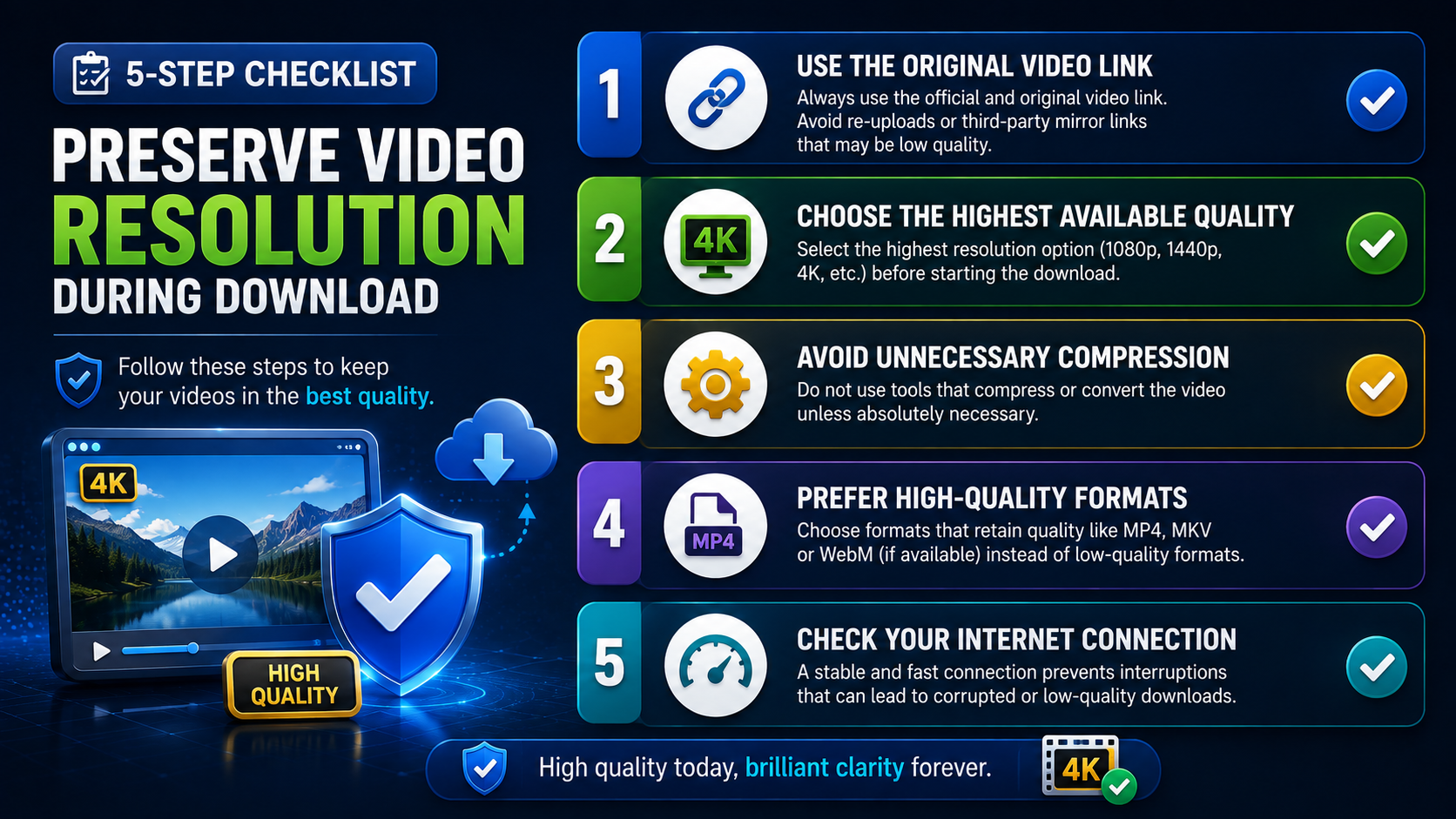
Use a downloader that pulls the original stream. The goal is a tool that fetches the file as it was uploaded, rather than one that re-encodes it into a "downloader-friendly" version behind the scenes.
Avoid tools that add watermarks. If a downloader stamps its own logo onto your video, that's a clear sign the file has been processed after the fact — and processing is exactly where quality loss tends to happen.
Check file size as a sanity check. A genuinely unaltered HD or 4K file will be noticeably larger than a compressed version of the same video. If a "4K download" is suspiciously small, it likely isn't actually delivering true 4K detail anymore.
Confirm the source resolution first. No downloader can give you 4K from a video that was only ever uploaded in 720p — the ceiling is always set by the original source, and no amount of downloading "trickery" changes that basic fact.
Play the file back at full screen before deciding it's fine. Compression artifacts are often easiest to spot in fast-motion scenes or areas with fine detail, and these issues can be invisible in a small thumbnail preview.
Why This Matters More Than People Realize
Resolution loss compounds over time and across processes. If you download a compressed version of a video and then re-upload or re-edit it, you're now working from an already-degraded file, and any further processing — cropping, color grading, adding text — makes the quality loss worse. Getting the highest-quality version on the very first download saves you from that entire downward spiral, since you can always compress a high-quality source down later, but you can never recover detail that was never captured in the first place.
A Downloader Built Around This Principle
White Hole is designed specifically to avoid the common causes of resolution loss:
No re-encoding — the original stream is preserved as closely as the source allows, rather than being converted through an intermediate compression step.
No watermarks added to downloaded files, meaning nothing is reprocessed after the original file is pulled.
Clear progress feedback, so you know a download completed properly rather than cutting off early and producing a corrupted or partial file that might look fine on the surface but fail on playback.
Comparing Compression Levels: What to Look For
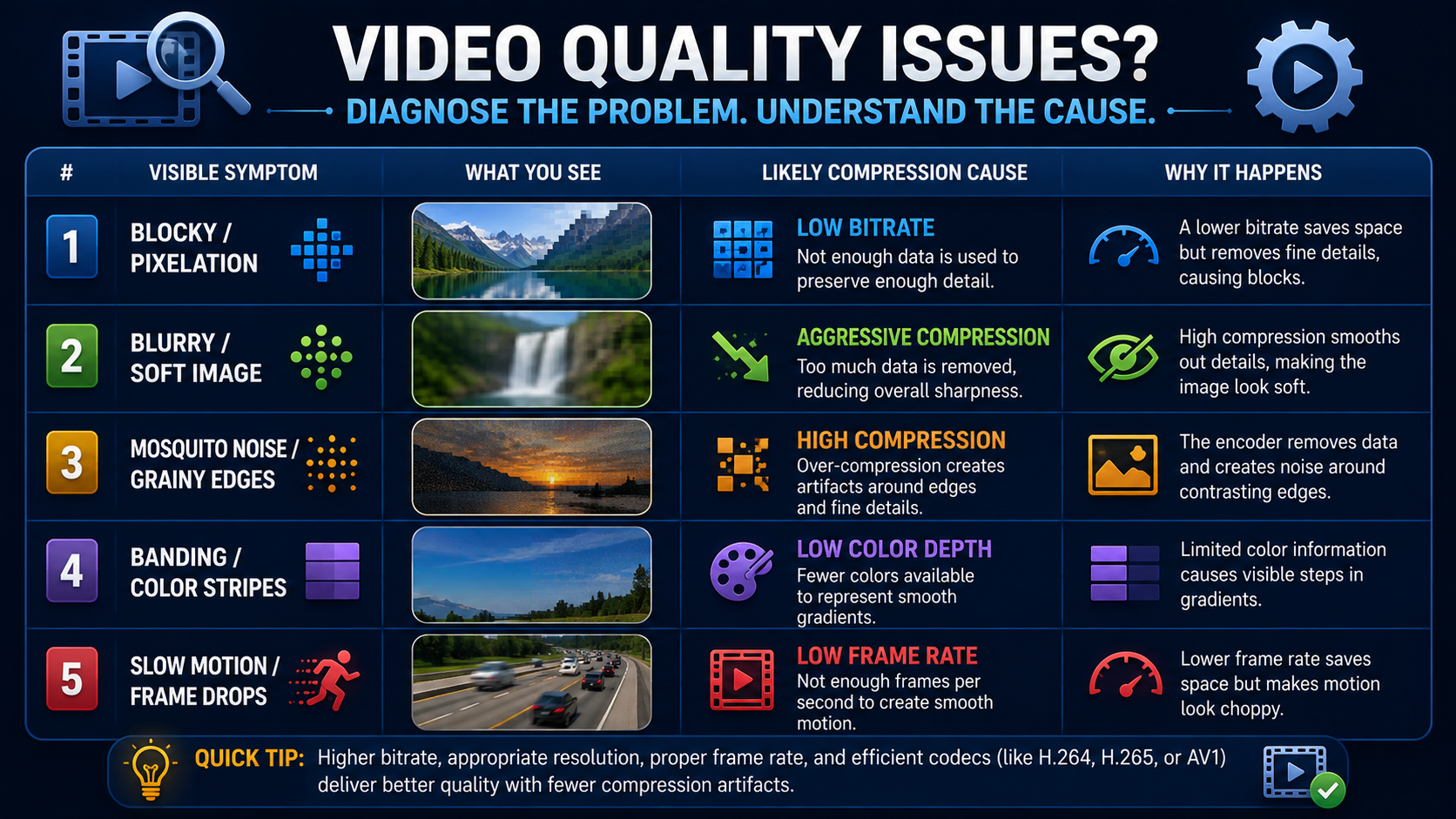
Symptom | Likely Cause |
|---|---|
Blocky, pixelated fast motion | Low bitrate re-encoding |
Visible logo or watermark | File reprocessed after download |
File size much smaller than expected | Aggressive compression |
Banding in skies or gradients | Heavy compression during re-encoding |
A Few Practical Tips
If a 4K video downloads smaller than expected, double-check the original upload — the source itself may not have actually been true 4K to begin with, regardless of the label.
Downloading over a stable connection matters more at higher resolutions, since a dropped connection mid-download is more likely to corrupt a large file than a smaller one.
If you're downloading for editing purposes specifically, always grab the highest quality available — you can compress down for the final export later, but you can't add back detail that was stripped out during download.
Keep a mental note of which tools have given you clean results in the past, and stick with them, rather than switching between different downloaders each time and getting inconsistent quality.
Understanding Bitrate and Why It Matters as Much as Resolution
Resolution gets most of the attention, but bitrate is arguably just as important for perceived quality. Bitrate refers to how much data is used to encode each second of video — a higher bitrate means more detail is preserved, especially during fast motion or complex scenes. Two videos can share the exact same resolution label while looking dramatically different in quality simply because one was encoded at a much higher bitrate than the other. This is why file size is such a useful, practical shortcut when judging download quality. Since bitrate directly affects file size, a properly preserved video will almost always be noticeably larger than a heavily compressed one at the same resolution. If you're ever unsure whether a downloader delivered a genuine, unaltered file, comparing its size against a rough expectation (a few minutes of well-encoded 1080p footage is often several hundred megabytes, and 4K considerably more) is a quick way to sanity-check the result.
How Different Video Types Are Affected Differently
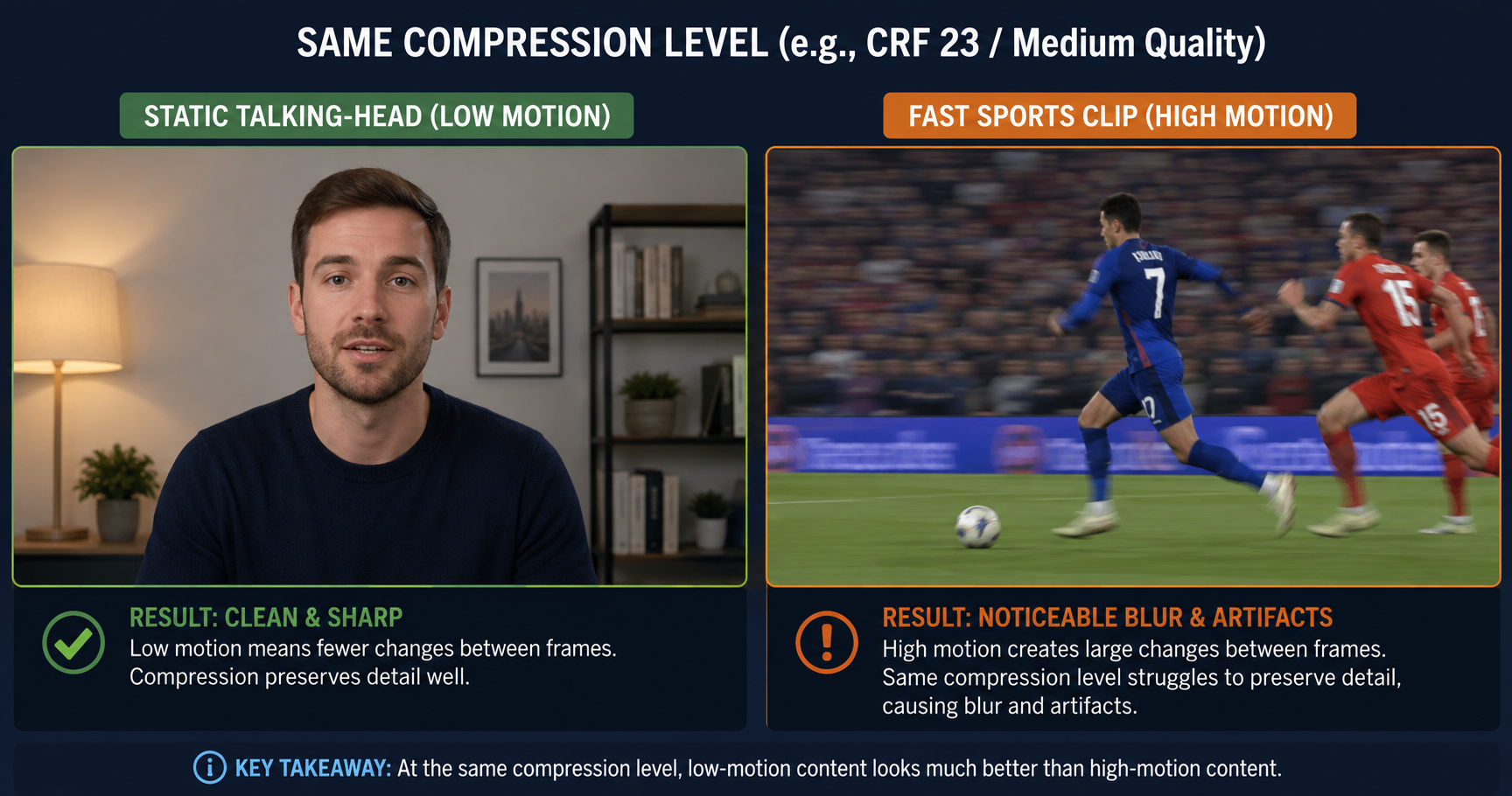
Not all footage suffers equally from compression. Slow, static scenes — a talking-head video, a presentation slide, a still landscape shot — tend to hold up reasonably well even under moderate compression, since there's less changing information for the encoder to preserve each frame. Fast-motion content — sports clips, action sequences, anything with a lot of camera movement — is far more vulnerable to visible quality loss, since compression algorithms struggle more to keep up with rapidly changing detail. If the type of content you download regularly falls into this second category, quality preservation matters even more, and it's worth being extra diligent about which tool you use.
Frequently Asked Questions
Can any downloader turn a 720p video into 4K?
No. No tool can add detail that wasn't in the original file. Downloaders can only preserve or degrade source quality — never improve it beyond what was originally uploaded.
Why does my downloaded video look worse than when I streamed it?
This almost always means the downloader compressed or re-encoded the file. Streaming platforms often serve their highest available quality when you watch directly, while some downloaders default to a lower version to save processing resources.
Does White Hole support downloading in the original resolution?
Yes — White Hole pulls the original stream without re-encoding, so if the source was uploaded in HD or 4K, that's what you'll receive.
Is a larger file size always a sign of better quality?
Generally yes, when comparing the same video at the same resolution — a larger file size usually indicates a higher bitrate and less compression was applied.
Final Tip
If you regularly download videos for editing, presentations, or archiving, it's worth testing any new downloader tool on a source you already know the resolution of, then comparing the output side by side. It's the fastest, most reliable way to confirm whether a tool actually preserves quality or just claims to on its homepage.