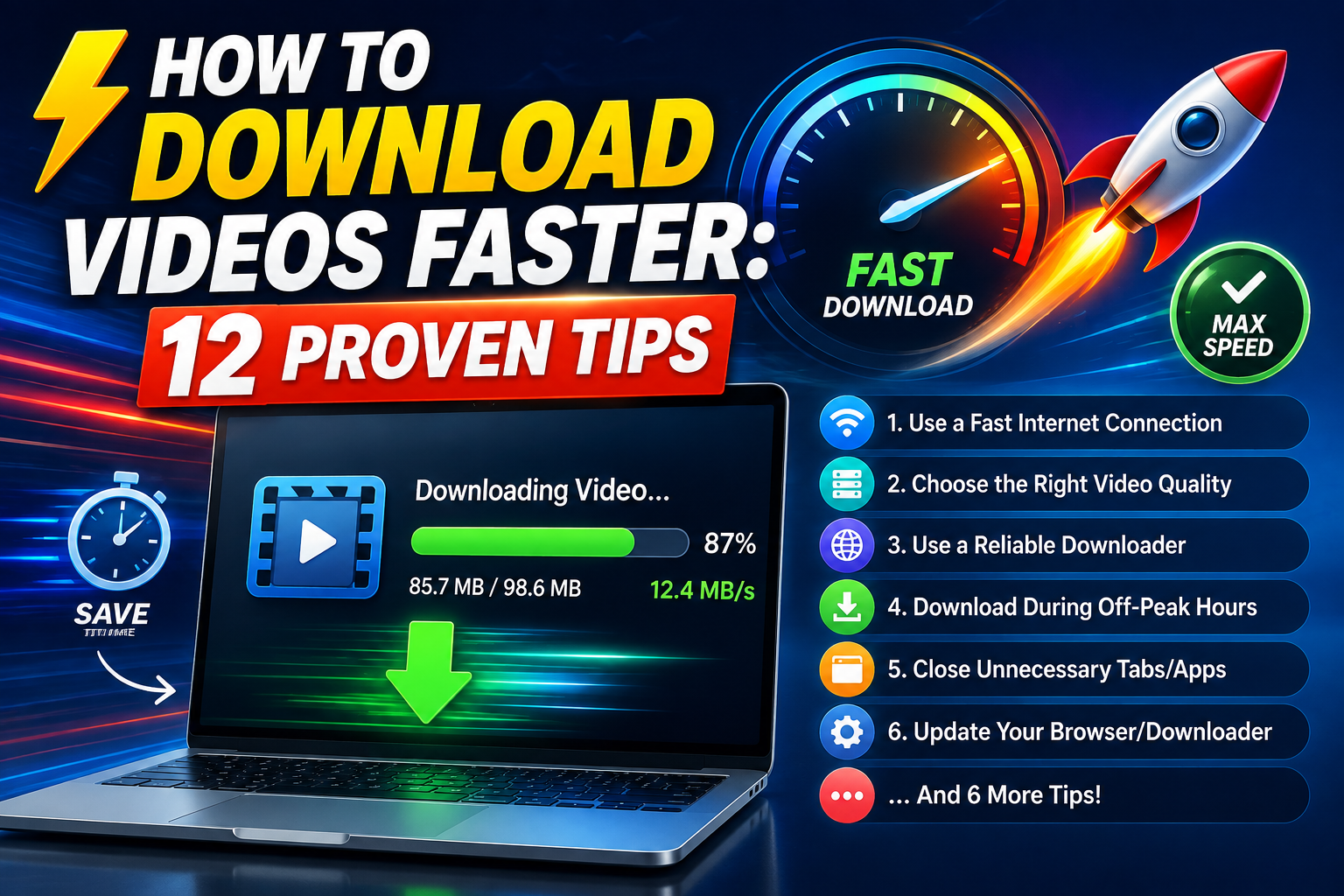
Slow downloads are frustrating, especially when you're trying to grab a quick reference clip or save something before you lose the link. Some of what affects download speed is outside your control, but a surprising amount isn't. Here are 12 practical, genuinely useful tips for downloading videos faster.
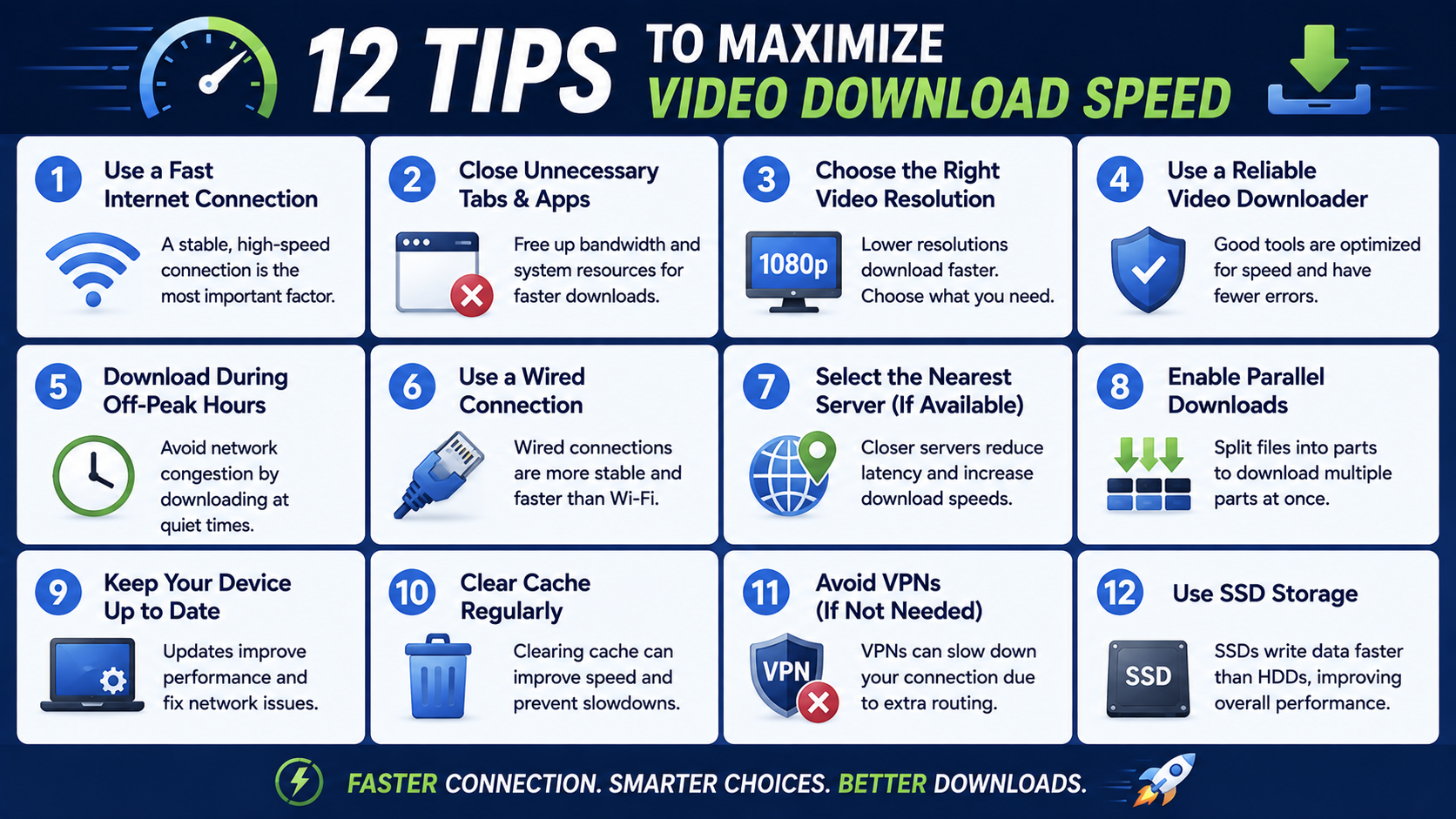
1. Use a Stable Wi-Fi Connection Instead of Mobile Data
Wi-Fi connections are generally more stable and often faster than mobile data, particularly for larger files like HD or 4K video. If you have the option, switching to Wi-Fi before starting a large download can meaningfully cut down on both speed issues and the risk of an interrupted transfer.
2. Close Unnecessary Browser Tabs and Background Apps
Every open tab and background application competes for your device's bandwidth and processing power. Closing tabs you're not actively using, especially ones streaming video or auto-refreshing content, frees up more resources for your download.
3. Choose a Downloader with Efficient Server Infrastructure
Not all downloader tools are built the same on the backend. Some rely on slower, overloaded servers that create bottlenecks regardless of your own connection speed. A well-maintained tool with solid infrastructure will generally deliver faster, more consistent download speeds.
4. Avoid Downloading During Peak Usage Times
If a particular downloader service experiences high traffic at certain times of day, you may notice slower processing during those windows. If speed matters and you have flexibility, trying a download at an off-peak time can sometimes make a noticeable difference.
5. Download the Resolution You Actually Need
Higher resolution means a larger file, which takes longer to transfer. If you genuinely only need a video for casual viewing on a phone screen, downloading in HD rather than 4K can meaningfully cut download time without a noticeable quality trade-off for that use case.
6. Use a Downloader with Direct Result-to-Download Handoff
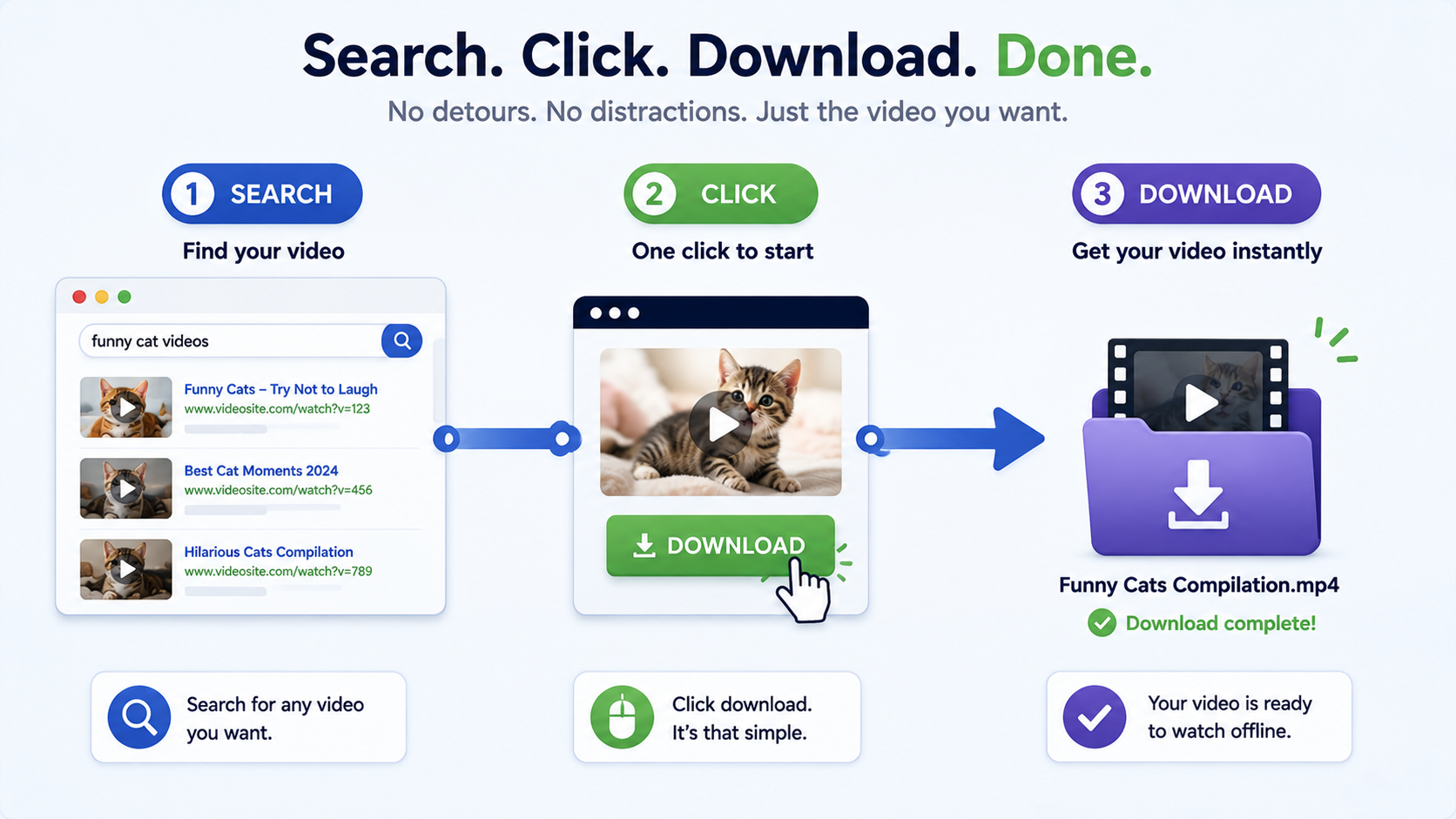
Tools that require you to copy a link, paste it into a separate page, wait, then download from yet another page add unnecessary steps that slow down the overall process. A workspace where search results move directly into the downloader saves real time across multiple downloads.
7. Restart Your Router If Speeds Feel Consistently Slow
If downloads across multiple sites and tools all feel sluggish, the issue may be with your home network rather than any specific downloader. A simple router restart occasionally clears up connectivity issues that build up over time.
8. Use a Wired Connection for Large Downloads on Desktop
If you're downloading a particularly large 4K file on a desktop computer, connecting via ethernet rather than Wi-Fi can provide a more stable, often faster connection, particularly if your Wi-Fi signal is weak or shared across many devices.
9. Avoid Downloader Tools That Force Extra Redirect Steps
Some ad-driven downloader sites intentionally add extra steps, countdown timers, or redirect pages before letting you download, as a way of generating more ad views. These aren't a technical speed limitation — they're a deliberate design choice that slows you down. Switching to a more direct, transparent tool avoids this entirely.
10. Check Your Device's Available Storage
Extremely low available storage can sometimes cause slower write speeds as your device struggles to find space for the incoming file. Clearing out unnecessary files before a large download can help avoid this.
11. Download One Large File at a Time Rather Than Several Simultaneously
Running multiple large downloads at once splits your available bandwidth between them, often making all of them slower than downloading one at a time would be. If speed matters more than convenience for a specific download, queue them up sequentially instead.
12. Use a Tool That Shows Clear Progress Feedback
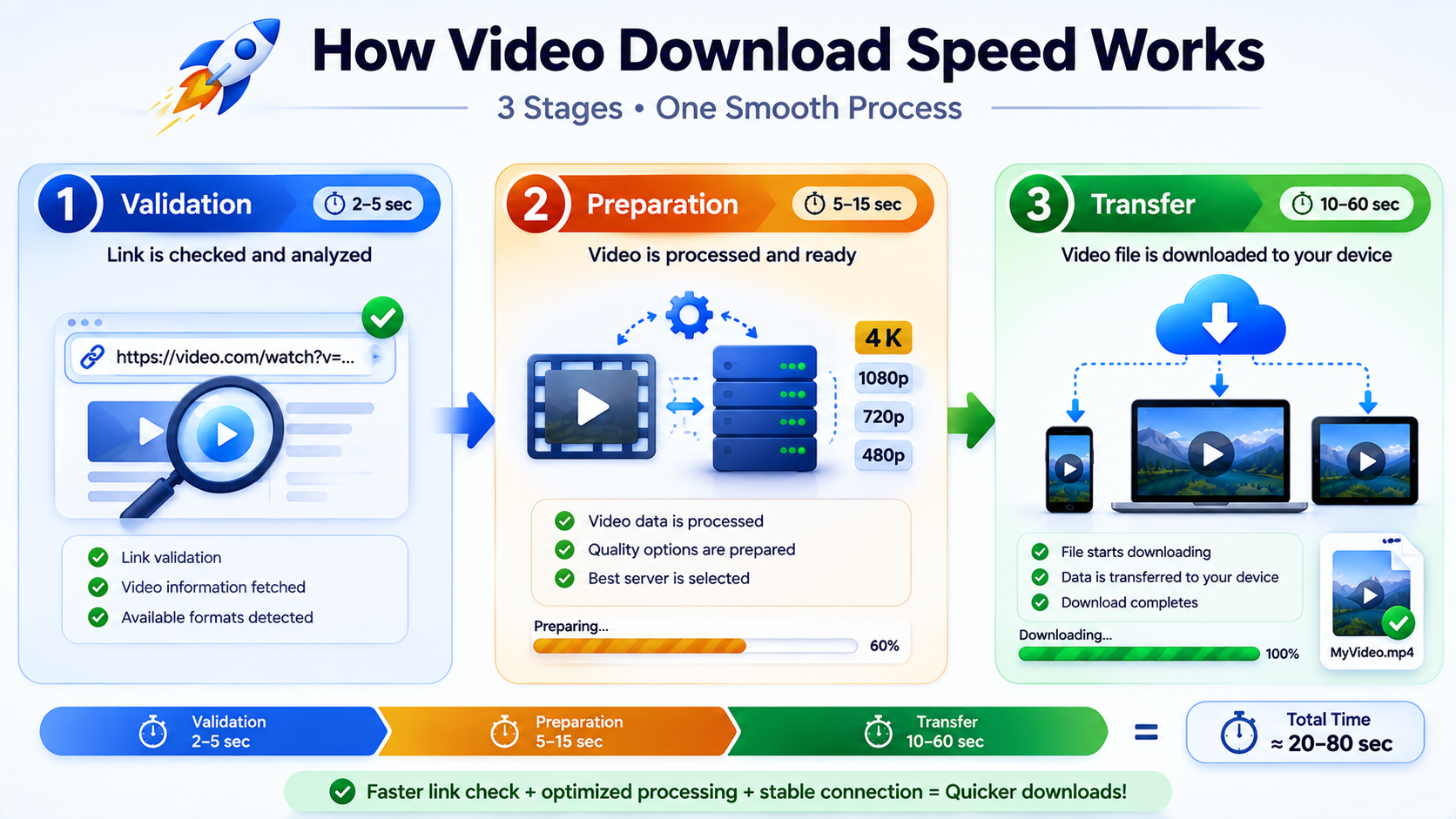
This won't technically speed up the download itself, but it addresses a common frustration: not knowing whether a slow download is actually progressing or has stalled entirely. A tool with visible status feedback — validating, preparing, downloading — lets you make an informed decision about whether to keep waiting or troubleshoot, rather than wondering in the dark.
How White Hole Approaches Speed
White Hole is built around several of these principles directly: search results move straight into the downloader without unnecessary extra steps, there are no forced redirect pages slowing down the process artificially, and a visible progress panel shows exactly where a download stands at every stage. Combined with a focus on not re-encoding files unnecessarily (which adds processing time as well as compression), the overall experience is designed to get you from link to finished file with as little friction as possible.
A Quick Speed Checklist
[ ] Connect to stable Wi-Fi or ethernet rather than mobile data, if possible.
[ ] Close unnecessary tabs and background apps.
[ ] Choose the resolution you actually need, not automatically the highest available.
[ ] Avoid sites with forced redirects or countdown timers.
[ ] Download one large file at a time rather than several simultaneously.
[ ] Use a tool with visible progress feedback so you can tell what's actually happening.
Understanding What "Fast" Actually Means for a Download
It's worth clarifying what speed actually refers to in this context, since it's often conflated. There are really three separate stages: the time it takes a tool to validate and locate the source video, the time it takes to prepare or process the file for download, and the actual data transfer speed once the download begins. A tool can be fast at one stage and slow at another — for example, a downloader with a bloated, ad-heavy interface might take a long time just to get to the point where a download even starts, even if the actual file transfer afterward is reasonably quick. When evaluating whether a downloader "feels" fast, it helps to consider all three stages rather than just the final transfer speed, since a slow, cluttered interface can make an otherwise fast tool feel sluggish overall.
Frequently Asked Questions
Does the video downloader tool itself affect speed, or is it all about my internet connection?
Both matter. Your connection sets an upper limit, but the tool's infrastructure, whether it re-encodes files, and whether it adds unnecessary redirect steps all significantly affect real-world speed within that limit.
Will downloading in a lower resolution always be faster?
Generally yes, since there's simply less data to transfer, though the difference becomes most noticeable at higher resolutions like 4K.
Why do some downloader sites feel artificially slow?
Some intentionally add countdown timers or extra steps to increase ad views, which isn't a genuine technical limitation but a deliberate design choice.
Does White Hole limit download speed in any way?
No, White Hole is designed to move directly from search or link to download without artificial delays or unnecessary redirect steps.
A Note on Mobile Data Usage While Downloading Faster
If you do need to download over mobile data rather than Wi-Fi, be mindful that maximizing speed often means maximizing data usage too, particularly at higher resolutions. Many mobile carriers throttle speeds after a certain data threshold is reached, which can ironically make later downloads slower in the same billing cycle. If speed matters and you're on a limited data plan, downloading in a slightly lower resolution can actually keep your overall experience faster over time by avoiding that kind of throttling.
Final Thoughts
Download speed comes down to a mix of your own connection, your device, and the specific tool you're using — and while you can't control everything, several of the factors above are genuinely within your control. Choosing a downloader that avoids artificial delays and unnecessary steps, like White Hole, removes one of the biggest and most avoidable sources of slow, frustrating downloads.