
Quality is the thing most people don't think about until they've already downloaded a video and it looks noticeably worse than they expected. A clip that looked crisp on the original platform can turn into a blurry, blocky mess once it's saved — and usually, that's not because of the source, it's because of how the downloader handled the file. This guide covers exactly what causes that quality drop, and how to avoid it entirely.
Why Video Quality Drops During Download
Most quality loss happens for one of three reasons, and understanding each one makes it much easier to avoid all of them.
Re-encoding. Some downloaders don't grab the original video stream at all — instead, they pull the video and then re-encode it into a new file, often at a lower bitrate to save processing time or bandwidth. This introduces compression artifacts, even if the resolution label technically stays the same.
Default quality settings. Certain tools automatically fetch a lower-resolution version of the video to make the download faster, sometimes without clearly telling you this is happening. You might request a video and get a 720p file without realizing a 1080p or 4K version was available.
Platform-side serving differences. Some platforms serve different quality levels depending on region, connection speed detection, or device type. A downloader that doesn't account for this may simply grab whatever version the platform serves by default, rather than requesting the highest available quality.
Understanding Resolution and Bitrate
It helps to separate two things people often conflate: resolution and bitrate. Resolution refers to the pixel dimensions of the video (1080p, 4K, etc.), while bitrate refers to how much data is used to encode each second of footage. A video can technically be labeled 4K while still looking soft or blocky if it was encoded at a low bitrate. This is why file size is often a better real-world quality indicator than the resolution label alone — a properly encoded 4K file will be substantially larger than a heavily compressed one, even at the same stated resolution.
How to Download in HD or 4K Without Quality Loss
Confirm the source is actually available in HD or 4K. Not every upload is — many creators only publish in 1080p, and no downloader can manufacture detail that was never in the original file.
Use a downloader that pulls the original file rather than one that re-encodes it into a smaller, faster-to-download version behind the scenes.
Avoid tools that add watermarks. A watermark is a visible sign that the file has been processed and altered after the original download — and that kind of post-processing is often where quality gets sacrificed.
Check the file size after downloading. A genuine HD or 4K file will be noticeably larger than a compressed version of the same clip. If a "4K download" comes out surprisingly small, it likely isn't actually delivering full 4K detail.
Play the file back at full screen. Compression artifacts — blockiness, blurring around fast motion, banding in gradients — are usually most visible when the video is viewed at full resolution rather than in a small preview window.
Choosing the Right Tool for High-Quality Downloads
This is where a lot of free downloader sites quietly cut corners. Many are optimized for speed and server cost over output quality, since faster, smaller downloads mean less bandwidth expense for the provider — not necessarily a better result for you.
White Hole takes the opposite approach. It's built to preserve the original video quality on every download, with no compression shortcuts and no watermark added to the file. Paste a link, let the workspace validate the source, and the file you get matches the quality of the original upload — whether that's standard HD or full 4K, depending on what the source actually supports.
HD vs 4K: Do You Actually Need 4K?
It's worth pausing on this, because 4K isn't always the right choice. 4K files are significantly larger — often four times the size of an equivalent 1080p file — and take up considerably more storage and, in some cases, longer download times. For casual viewing on a phone or tablet screen, the visual difference between 1080p and 4K is often barely noticeable. 4K becomes genuinely valuable when you're editing footage, viewing on a large 4K display, or archiving something you want to preserve at the highest possible fidelity. For everyday saves, HD is usually the more practical choice.
A Few Practical Tips for High-Quality Downloads
If a 4K video downloads smaller than expected, double-check the original upload — the source itself may not have actually been true 4K to begin with.
Downloading over a stable connection matters more at higher resolutions; a dropped connection mid-download is more likely to corrupt a large 4K file than a smaller one, since there's simply more data that needs to transfer cleanly.
Keep an eye on your device storage before downloading multiple 4K files in a row — a single 4K video can easily be several gigabytes.
If you're downloading for editing purposes, always grab the highest quality available, since you can compress down later, but you can never recover detail that wasn't captured in the first place.
Common Quality Complaints and What They Usually Mean
"The video looks pixelated in fast motion." This is a classic sign of a low bitrate encode — the file may be labeled at the correct resolution but wasn't given enough data to render fast-moving detail cleanly.
"There's a visible watermark or logo added." This means the file was reprocessed by the downloader after being pulled from the source, which is itself a quality red flag beyond just the visual clutter.
"Colors look slightly off or banded." This typically points to aggressive compression during re-encoding, which can introduce visible banding in gradients like skies or shadows.
Video Formats and Why They Matter for Quality
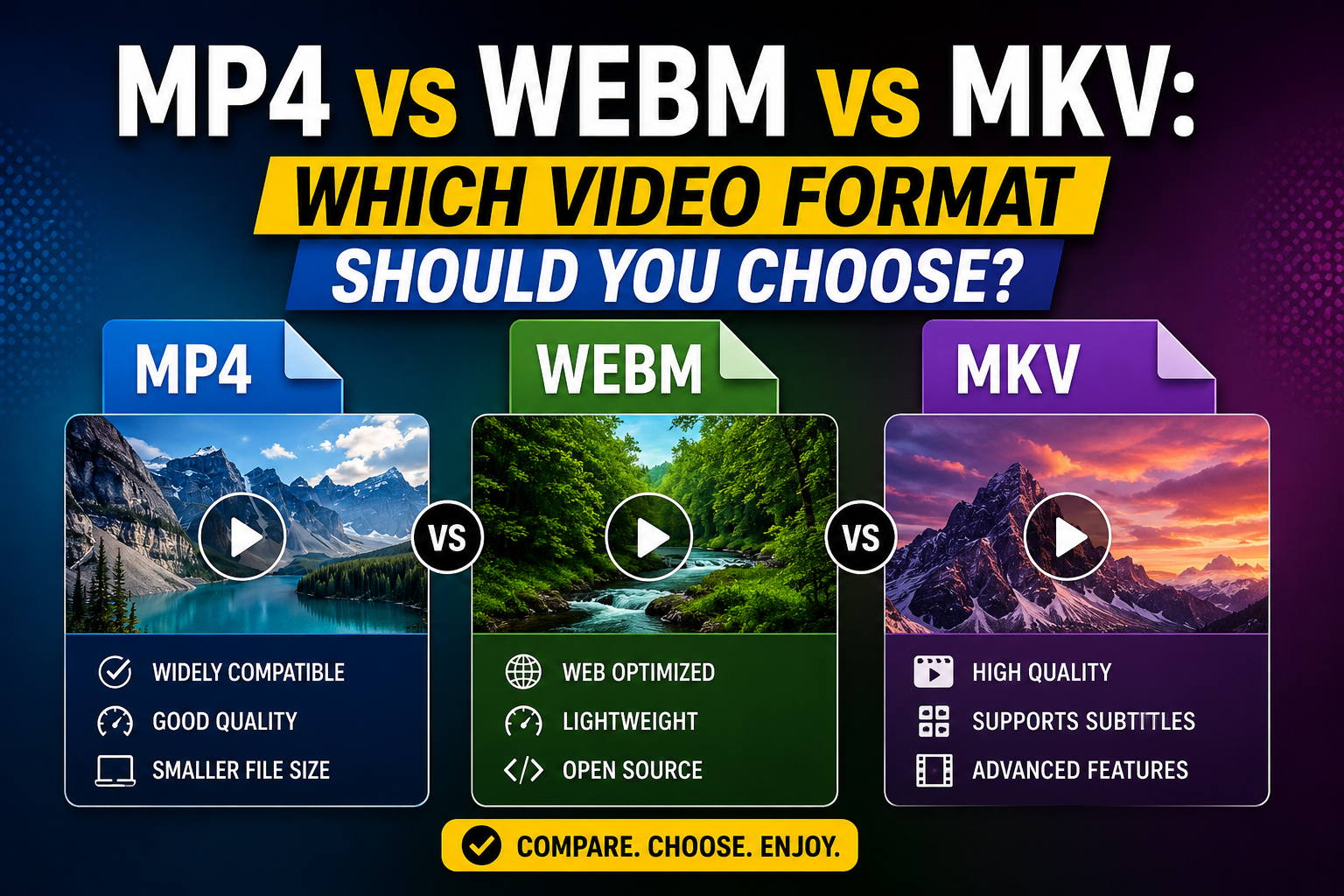
Beyond resolution and bitrate, the container format (like MP4, WebM, or MOV) can also affect compatibility and, indirectly, perceived quality. MP4 is generally the safest default — it's widely supported across devices, media players, and editing software, and it handles high-resolution, high-bitrate footage well without unnecessary overhead. If a downloader forces every file into a heavily compressed format regardless of the source, that's another place quality can quietly get lost. A well-built downloader should hand you a standard, widely compatible file without stripping out the detail that made the original worth downloading in the first place.
How Screen Size Affects What You'll Actually Notice
It's worth being realistic about where quality differences are visible. On a small phone screen, the gap between a well-encoded 1080p file and a slightly compressed one may be hard to spot. On a large monitor or TV, especially during fast motion or scenes with fine detail — text, foliage, textured surfaces — compression artifacts become much more obvious. If you know you'll eventually be viewing a download on a bigger screen, it's worth being extra careful about which tool you use, since the flaws that are invisible on mobile can become distracting on a larger display.
Frequently Asked Questions
Can any downloader turn a 720p video into 4K?
No tool can add detail that wasn't in the original file. Downloaders can only preserve or degrade the source quality — never improve it beyond what was originally uploaded.
Why does my downloaded video look worse than when I streamed it?
This almost always means the downloader compressed or re-encoded the file. Streaming platforms often serve the highest available quality when you watch directly, while some downloaders default to a lower version.
Does White Hole support 4K downloads?
Yes, when the original source supports it. White Hole pulls the original stream without re-encoding, so if the source was uploaded in 4K, that's what you'll receive.
Is a larger file size always better quality?
Generally, yes, when comparing the same video at the same resolution — a larger file size usually indicates a higher bitrate and less compression.
Final Thoughts
Getting a genuine HD or 4K download isn't about finding a hidden trick — it's about using a tool that doesn't compress the file in the first place. White Hole's video downloader is built around exactly that principle: what you see is what you get, at the quality it was actually uploaded in, without watermarks or unnecessary re-encoding standing in the way.