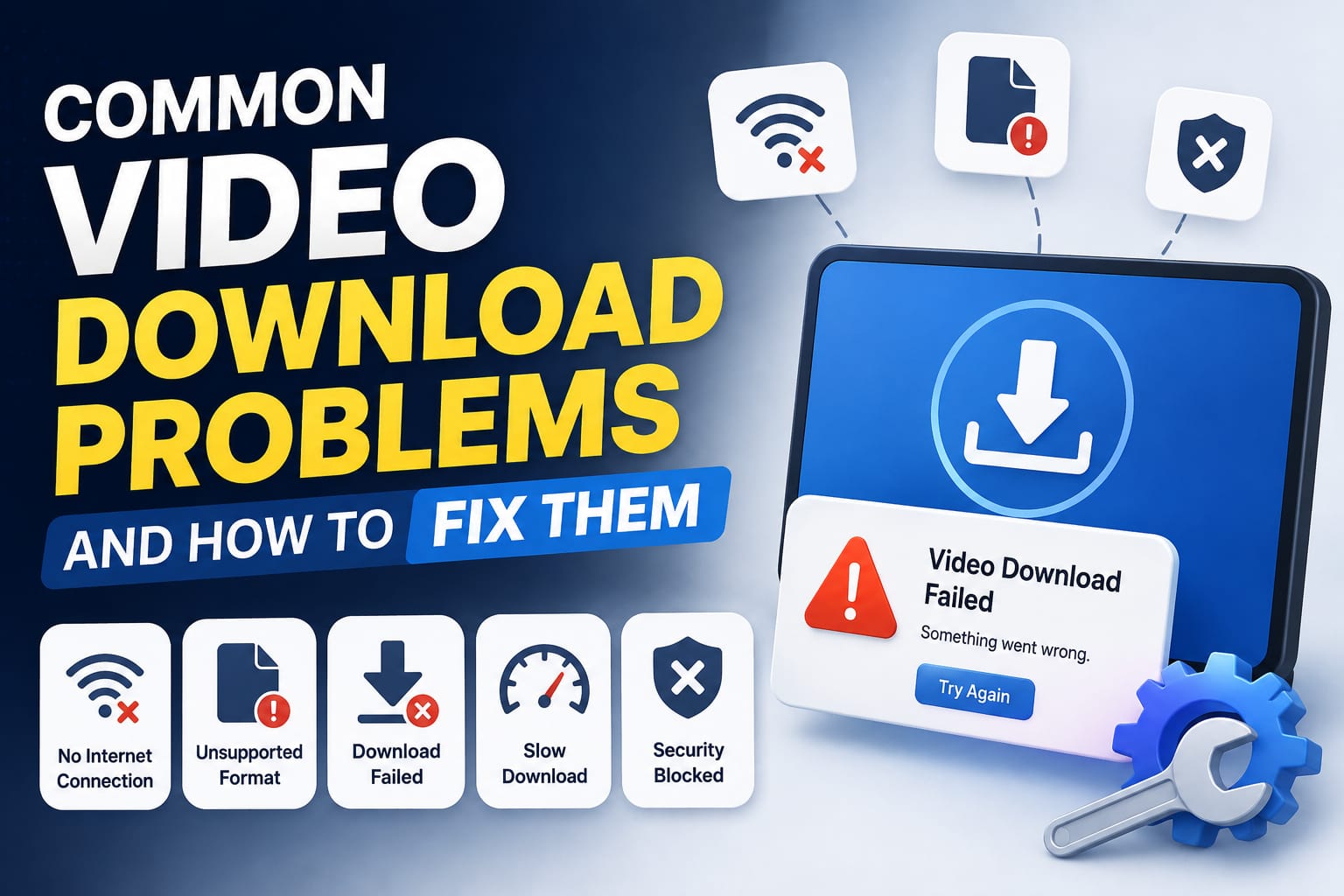
Almost everyone who's downloaded videos online has run into at least one of these problems. Most of them have simple explanations and equally simple fixes — the trick is knowing which category a given issue falls into, since the fix is different depending on the cause. Here's a detailed breakdown of the most common problems, why they happen, and what actually resolves them.
Problem 1: "This Link Doesn't Work"
This is the single most common issue, and it almost always comes down to the type of link, not a bug in the downloader itself.
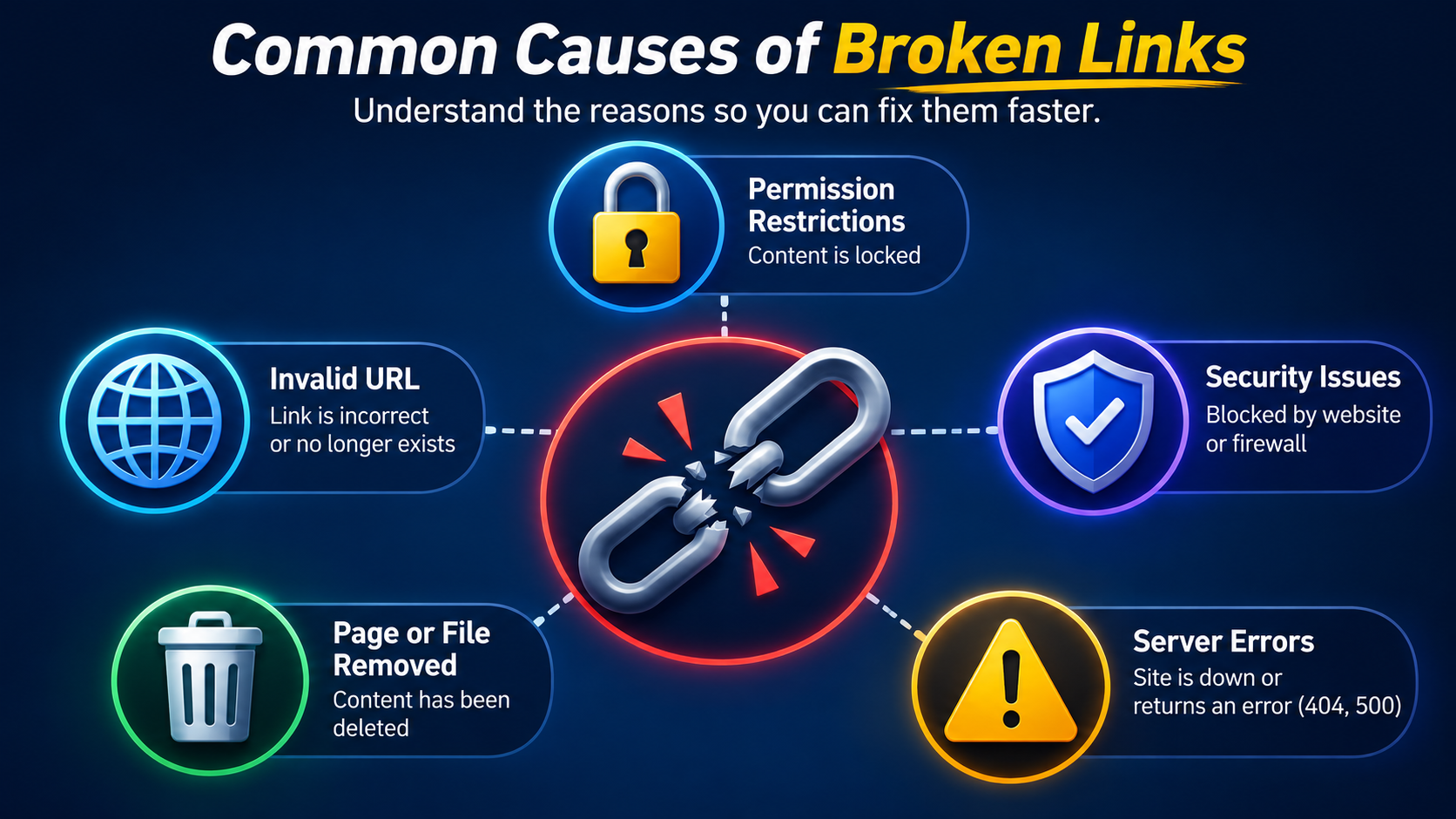
Likely causes:
The post is private or requires a login to view.
The content is region-restricted and unavailable from your location.
The media is DRM-protected, common with certain licensed streaming platforms.
The original post has been removed or made unavailable by the uploader.
The URL itself is malformed, incomplete, or was copied incorrectly (a common issue when copying from a mobile app rather than a browser).
Fix: Double-check that the source is genuinely public and that you copied the full, correct link — ideally directly from the platform's share button rather than from the address bar of an app-embedded browser, which can sometimes produce a shortened or session specific URL that doesn't work the same way. If it's a private post, there's no legitimate downloader workaround for that, and that's intentional rather than a limitation worth trying to bypass.
Problem 2: Downloaded Video Looks Worse Than the Original
Likely cause:
The downloader compressed or re-encoded the file instead of pulling the original stream, often to save server bandwidth or speed up processing.
Fix: Use a tool that explicitly preserves original quality rather than optimizing for smaller file sizes. White Hole, for example, is built to avoid compression artifacts and doesn't add a watermark, so the downloaded file matches the source quality as closely as the original upload allows.
Problem 3: Download Seems Stuck or Frozen
Likely causes:
An unstable internet connection interrupting the transfer partway through.
The source file being unusually large, which is common with 4K video and can simply take longer than expected.
The downloader tool lacking clear progress feedback, which makes a completely normal wait feel like a freeze even when nothing is actually wrong.
Fix: Check your connection stability first, ideally by testing another site or download to rule out a broader connectivity issue. If the tool shows a progress or status indicator, use that to confirm whether it's actually working — a downloader with visible validation and preparation states, rather than a blank spinner, makes this much easier to diagnose without guessing.
Problem 4: A Platform That Used to Work Suddenly Doesn't
Likely cause:
Platforms periodically change how they expose public media on the backend, which can temporarily break downloader compatibility until the tool provider updates their support for that specific change.
Fix: This isn't something you can fix on your end — it requires the downloader provider to update their backend. A good sign of a well-maintained tool is if it's transparent about this rather than pretending every link should always work regardless of platform changes. If a specific platform suddenly stops working across multiple links, it's worth checking the tool's blog or support page for any note about a known, temporary issue.
Problem 5: Popups or Redirects Instead of a Download
Likely cause:
The site is monetized primarily through forced ad redirects rather than a clean, direct download flow, meaning the "download" button is designed to generate ad revenue first and deliver your file second, if at all.
Fix: Switch to a downloader that doesn't rely on that model. White Hole's submit flow was specifically redesigned to remove forced popup behavior, since it was identified as a genuine trust issue that got in the way of the actual task users came to complete.
Problem 6: The File Downloads But Won't Play
Likely causes:
The file didn't finish downloading completely, often due to a connection interruption.
The format isn't supported by your device's default media player.
The file was corrupted during a re-encoding process on the downloader's end.
Fix: First, check the file size against what you'd expect for the video's length and quality — a suspiciously small file likely didn't complete. If the file size looks right but it still won't play, try a different media player, since some players don't support every video codec by default. If the problem persists across multiple attempts, it may point to an issue with how the downloader tool is processing the file rather than your device.
Problem 7: Downloading Works on Desktop But Not Mobile (or Vice Versa)
Likely cause:
The downloader wasn't built with full cross-device support, meaning its interface or download handling behaves inconsistently depending on the device and browser combination.
Fix: Confirm the tool explicitly states support for your browser and device type. Tools designed and tested across Chrome, Firefox, Safari, Edge, Opera, and Brave — on both desktop and mobile — are far less likely to run into this kind of inconsistency.
When It's Not a "Fixable" Problem
It's worth being upfront about this: private content, DRM-protected streams, and removed posts are not bugs to work around — they're intentional limits that exist for good reason, both legally and ethically. A responsible video downloader will tell you this plainly instead of pretending otherwise or implying there's a trick to bypass it.
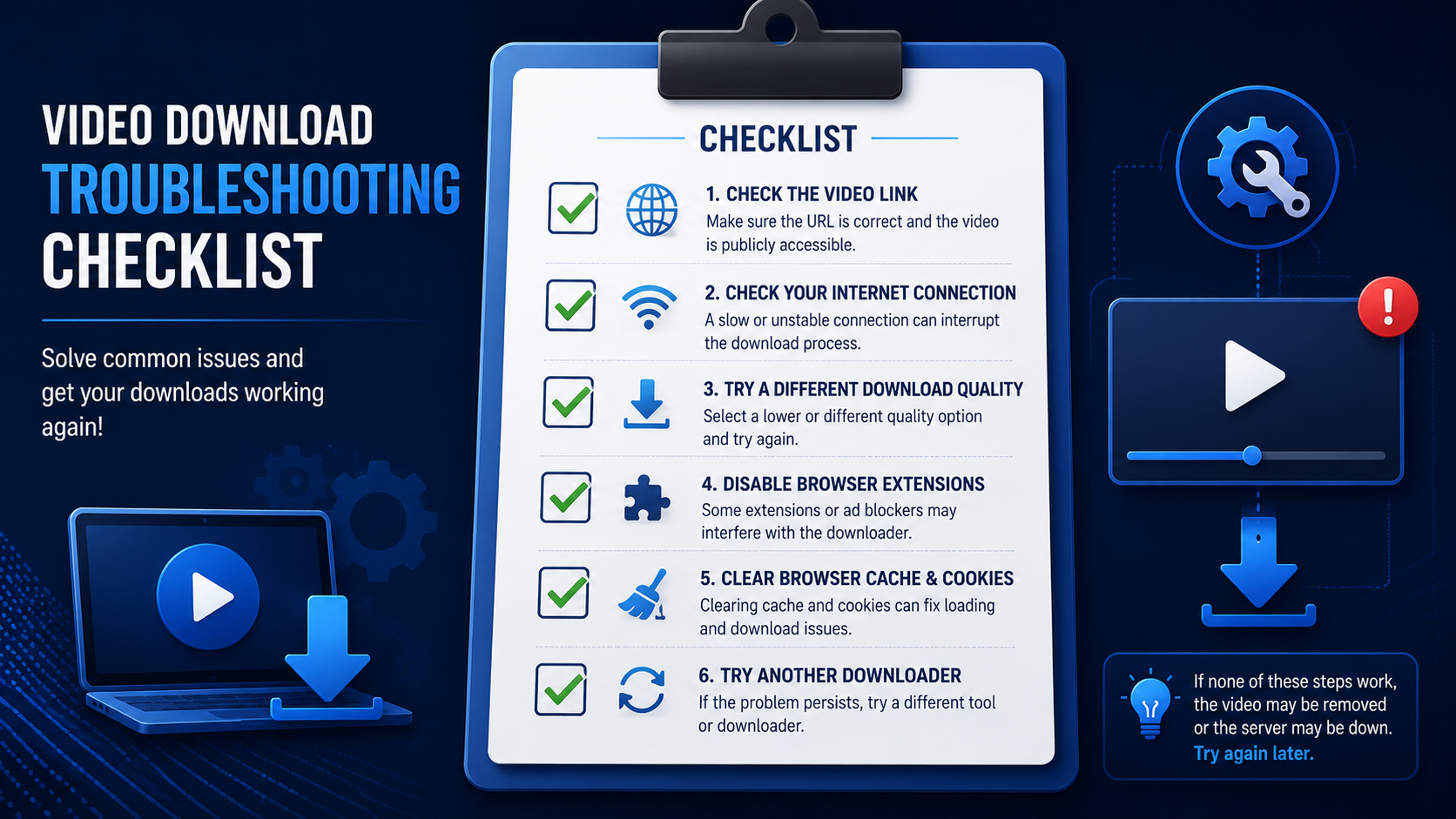
A Quick Troubleshooting Checklist
[ ] Confirm the link is from a public post, copied directly from the platform.
[ ] Check your internet connection stability.
[ ] Look for a visible progress or status indicator while the tool processes the link.
[ ] Verify the downloaded file size roughly matches what you'd expect.
[ ] Try the link again after a few minutes, in case of a temporary platform-side issue.
[ ] Check the downloader's support page for any known, ongoing issues.
Problem 8: Search Results Don't Show the Video You're Looking For
Likely causes:
The search term was too broad or didn't match how the video was actually titled or tagged.
The video is on a platform outside the tool's main search-first coverage, even if it's supported through a dedicated link-based route.
The content is private, meaning it wouldn't appear in public search results regardless of the downloader.
Fix: Try narrowing your search terms, including the creator's name or more specific keywords from the video title. If a platform isn't part of the tool's core search coverage, check whether it's still supported through a direct URL download instead — many all-in one downloaders, including White Hole, cover far more platforms through dedicated routes than through the main search experience alone.
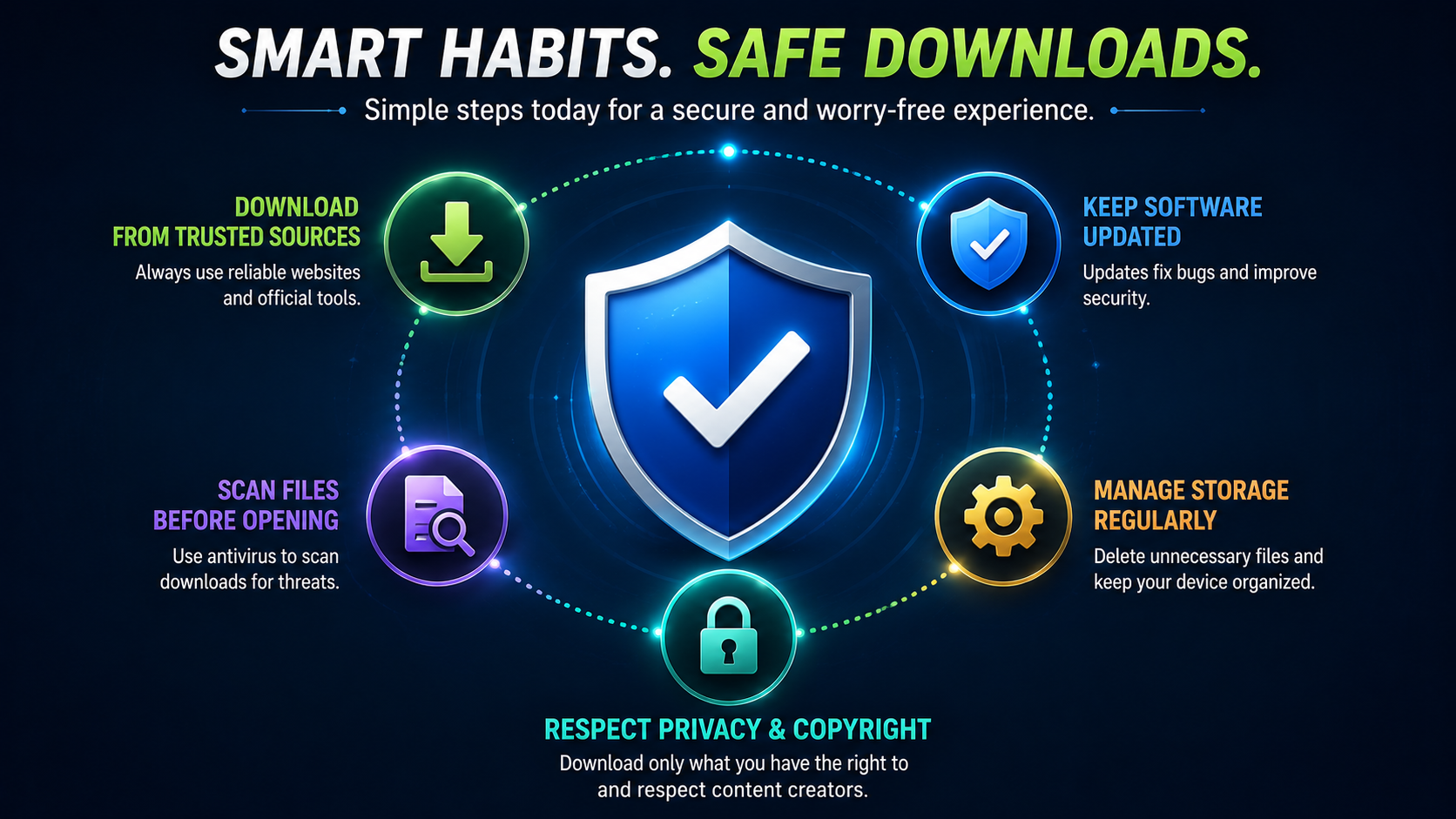
Preventing Problems Before They Happen
A few habits go a long way toward avoiding download issues in the first place:
Copy links directly from the share button, not from an address bar inside an app's embedded browser, which can produce session-specific URLs that behave unpredictably.
Download on a stable connection when possible, especially for larger 4K files.
Use a tool with visible progress feedback, so you can tell the difference between "still working" and "actually stuck" without guessing.
Check file size immediately after downloading, rather than assuming success and discovering a problem later.
Frequently Asked Questions
Why do some video links just never work, no matter what I try?
This usually means the content is private, region-restricted, or otherwise not meant to be publicly downloadable — no downloader tool can bypass that by design.
How do I know if a download actually finished successfully?
Check the file size against the video's length and expected quality, and try playing it back fully before assuming it's fine.
Why did a platform I download from often suddenly stop working?
Platforms occasionally change how they serve public media, which can temporarily break downloader compatibility until the provider updates their support.
Does White Hole show when something goes wrong?
Yes — the progress panel is designed to show validation, preparation, and completion states clearly, rather than leaving you guessing when an issue occurs.
Final Thoughts
Most download problems trace back to one of a handful of causes — link type, quality settings, connection issues, or platform changes — and once you know which category a problem falls into, the fix is usually straightforward. Using a downloader that's transparent about its limitations and gives clear status feedback throughout, like White Hole, makes troubleshooting far less frustrating whenever something doesn't work exactly as expected.