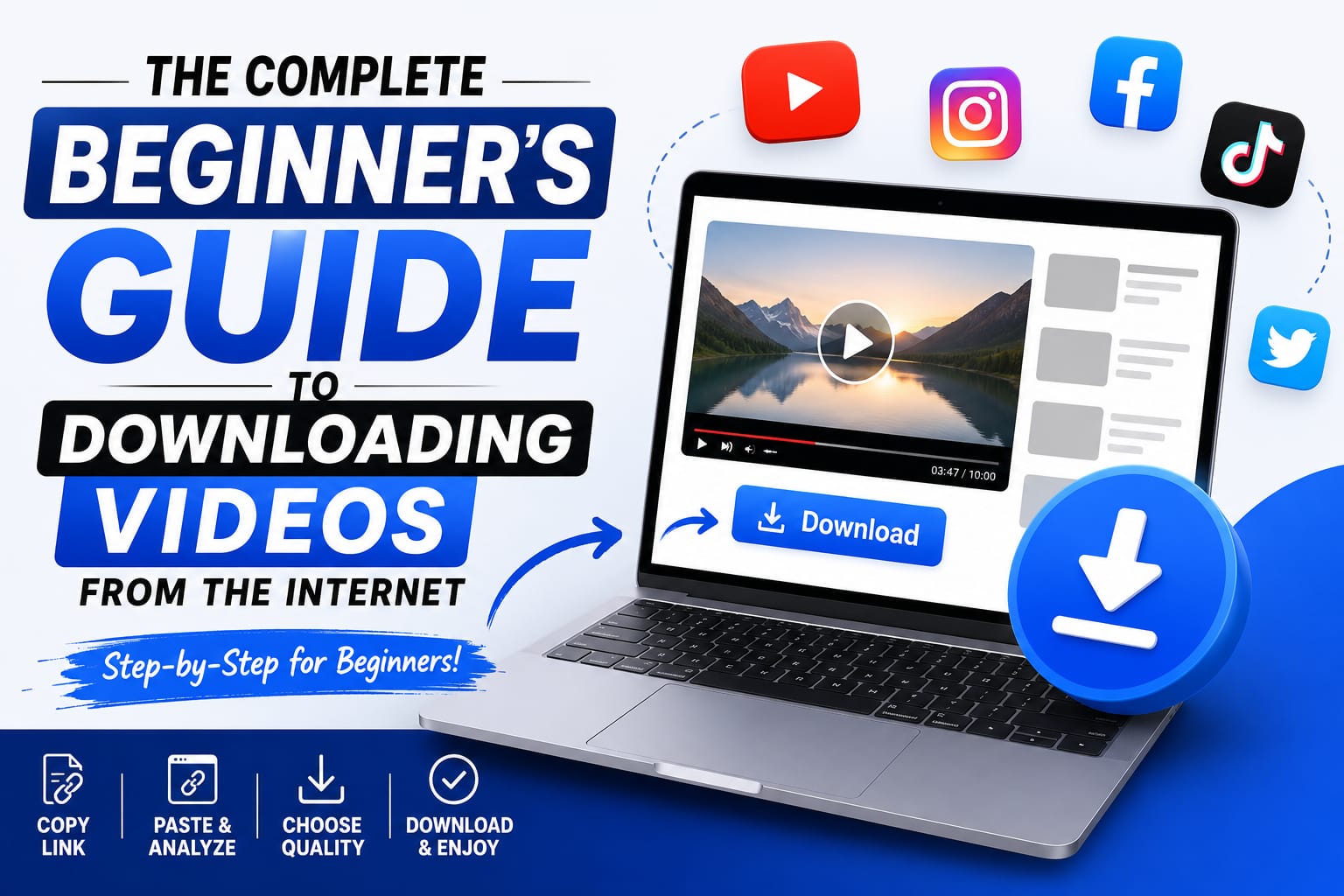
If you've never downloaded a video from the internet before, the process can feel more complicated than it actually is — mostly because so many downloader sites are cluttered with confusing buttons, ads, and unrelated redirects. Here's a simple, honest, complete walkthrough for beginners, covering everything from the basics to the small details that trip people up the first time.
Step 1: Understand What You Can (and Can't) Download
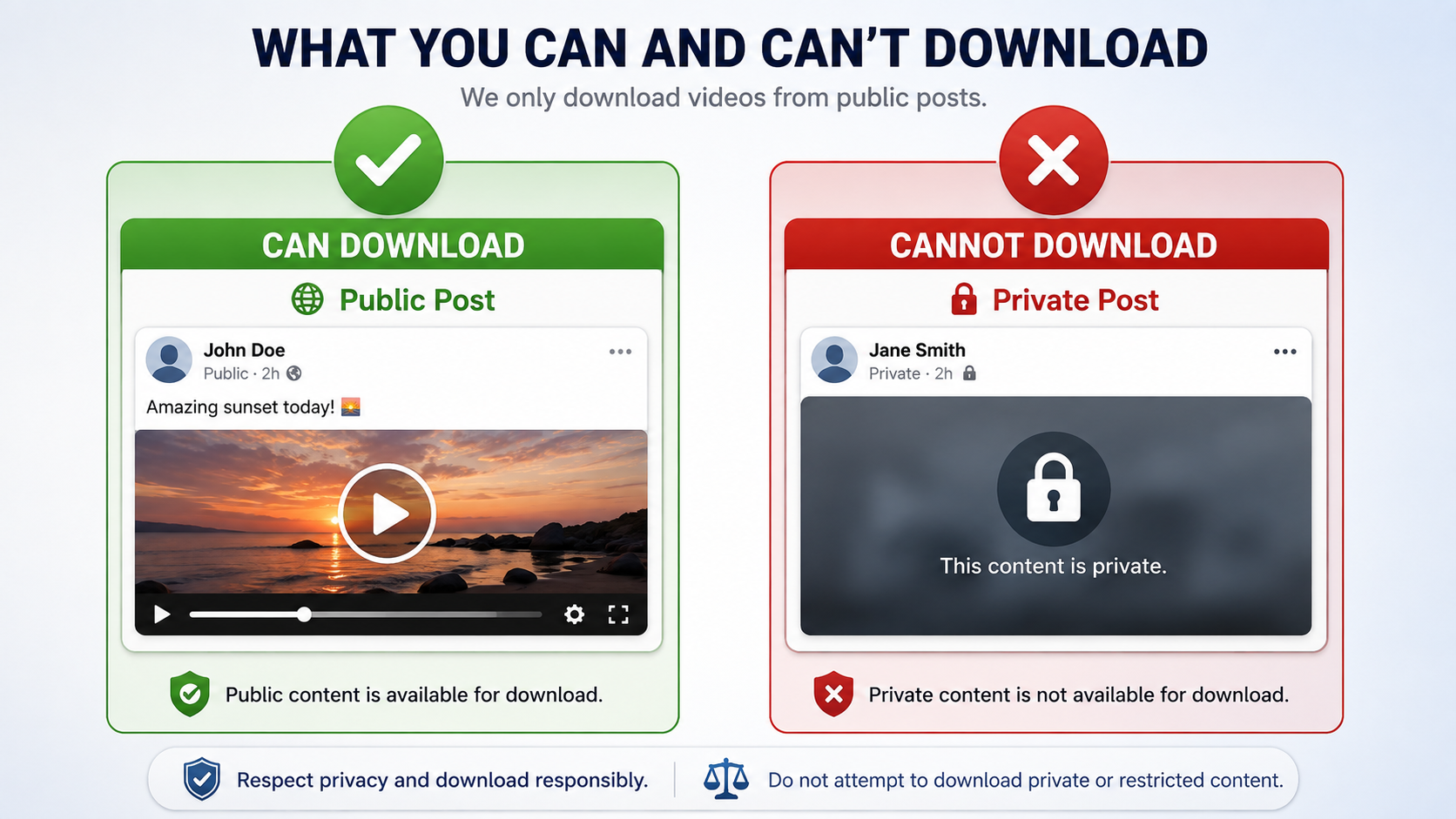
Before anything else, it helps to know the basic rule: public content you have the right to save. This includes your own posts, permitted creator backups, educational reference clips, and other publicly shared media where saving a copy doesn't violate the rights holder's terms.
Private posts, login-only pages, and DRM-protected streams generally aren't downloadable through a public browser-based tool — and that's intentional, not a limitation to try to work around. Understanding this upfront saves a lot of confusion later, since it explains why certain links simply won't work no matter which tool you try.
Step 2: Get the Video's Link
Every major platform has a "share" or "copy link" option on public videos, usually represented by a share icon near the video itself. This link is what you'll paste into a downloader tool.
A small but important tip: try to copy this link directly from the platform's official share button rather than from the address bar of an embedded browser inside another app (for example, opening a link from within a messaging app). These embedded links can sometimes be session-specific or shortened in a way that doesn't work reliably with downloader tools.
Step 3: Choose a Downloads Tool
This is the part beginners often get wrong, usually by clicking the first result in a search engine without checking whether it's actually trustworthy. A few quick things to check before committing to a tool:
Does it require installing software, or does it work directly in your browser? Browser based is simpler and generally safer for beginners, since there's nothing to install and nothing left behind afterward.
Does it force pop-ups or redirects before letting you download, or does clicking download actually lead to your file?
Does it clearly explain what it does and doesn't support, rather than vaguely implying it can handle anything from anywhere?
Does it require creating an account just to try a basic download?
White Hole is a good option for beginners specifically because it avoids the common pitfalls listed above: it works entirely in the browser, doesn't require sign-in, doesn't force pop-ups, and clearly explains its supported platforms and limitations upfront rather than leaving you to figure it out through trial and error.
Step 4: Paste the Link and Download
Once you've picked a tool, the process is nearly identical across platforms:
Paste the video's link into the input field on the homepage.
Wait for the tool to validate the source — a good tool will visibly show you this step happening rather than leaving you staring at a blank screen.
Once the file is ready, download it through your browser's normal download flow, the same process used for any other file you download from the web.
If you don't have a direct link — maybe you only remember the creator or general topic — a tool with a search option, like White Hole's Search Download, lets you find the video first, then download it directly from the search results without needing to track down the original link separately.
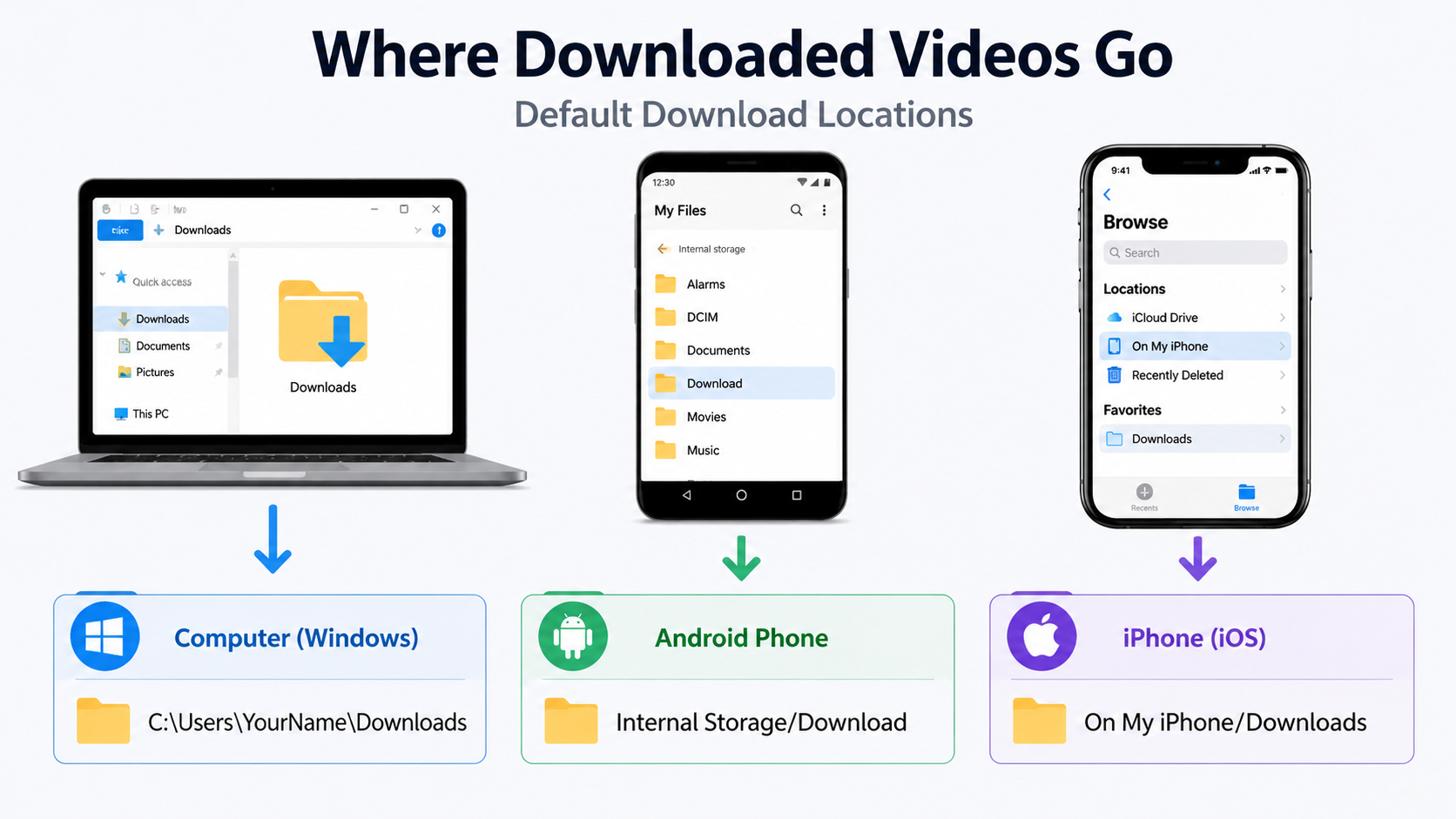
Step 5: Find Your Downloaded File
Where the file ends up depends on your device, and this is one of the more common points of confusion for first-timers:
Computer: usually your browser's default "Downloads" folder, which you can typically open directly from your browser's download notification or menu.
Android: typically a "Downloads" folder accessible via your file manager app, sometimes also visible directly in your gallery app depending on the file type.
iPhone/iPad: usually the Files app rather than Photos directly — you may need to manually save the video from Files into your Photos library afterward if you want it alongside your other photos and videos.
Common Beginner Mistakes to Avoid
Clicking the first "Download" button you see on ad-heavy sites, which often isn't the real one and can lead to an unrelated ad or, in worse cases, an unwanted download.
Assuming every link will work. Private or restricted content typically won't, regardless of which tool you use, and that's expected behavior rather than something to keep troubleshooting.
Not checking video quality after downloading. If it looks noticeably worse than the original, the tool likely compressed the file — worth switching to a downloader that explicitly preserves original quality.
Installing unnecessary software when a browser-based tool would have done the job just as well, without the storage space, security risk, or update hassle that comes with a desktop app.
Ignoring the disclaimer or terms of use. Even as a beginner, it's worth understanding what a tool is actually meant for, both to use it responsibly and to understand why certain downloads might not work.
Building Good Habits as You Get More Comfortable
Once you're past the initial learning curve, a few habits will make the process smoother going forward:
Bookmark a downloader you trust rather than searching fresh each time, which reduces the chance of landing on a lower-quality or riskier site.
Organize downloads into folders as you go, rather than letting everything pile up in one generic Downloads folder.
Get comfortable with search-based downloading, not just pasting links, since it opens up a much wider range of situations where you can still find and download a video even without a direct link on hand.
Pay attention to file quality over time, so you develop a sense for whether a tool is consistently delivering what you expect.
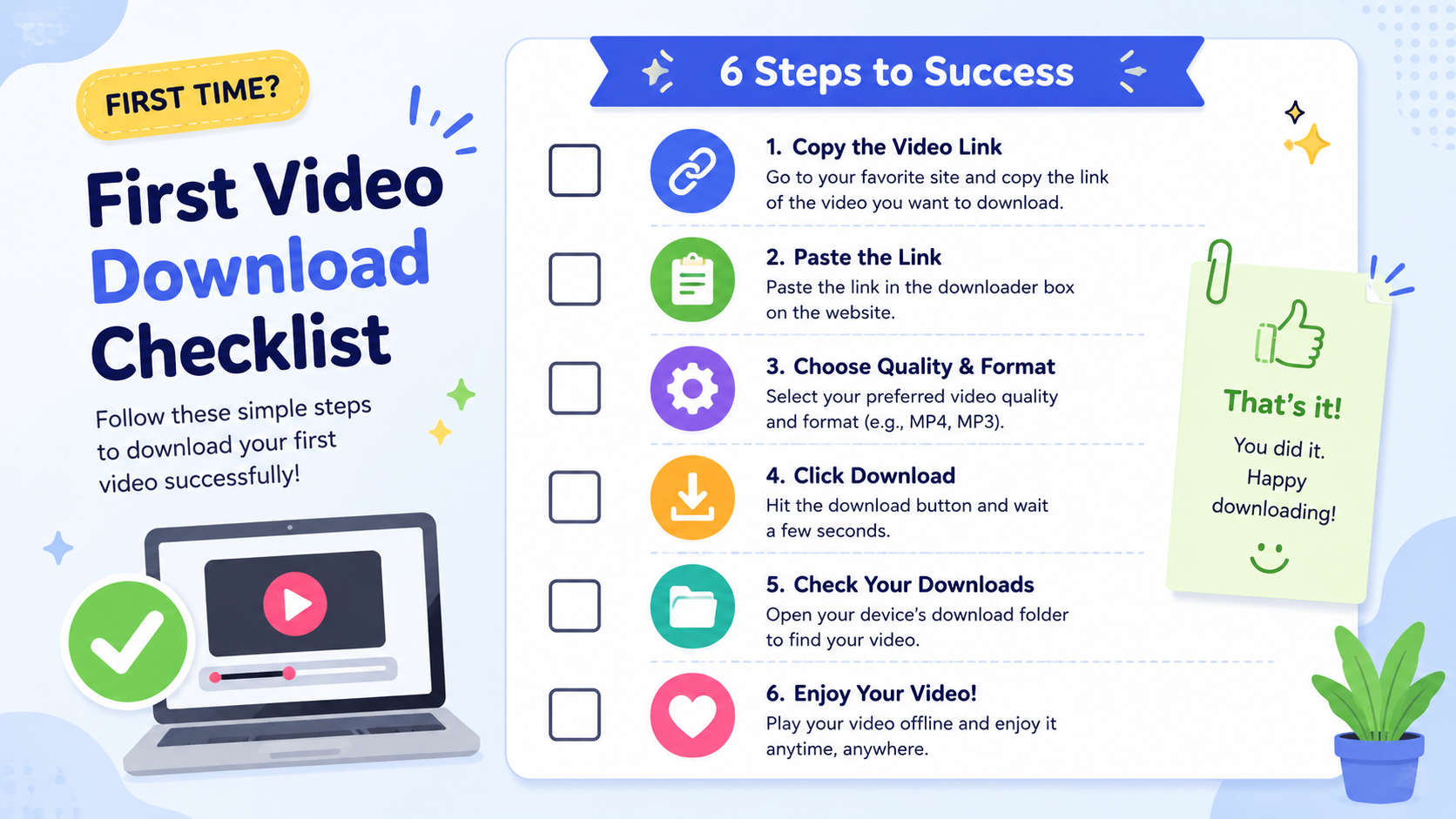
A Simple Checklist for Your First Download
[ ] Confirm the video is public and you have the right to save it.
[ ] Copy the correct link, ideally directly from the platform's share button.
[ ] Use a browser-based tool with no forced pop-ups.
[ ] Paste the link and wait for validation.
[ ] Download and check the file quality afterward.
[ ] Note where your device saved the file, so you can find it again easily.
Understanding Why Some Tools Feel Overwhelming at First
Part of what makes downloading feel intimidating to beginners isn't the actual technical process — it's the design of many downloader sites themselves. Pages crowded with multiple ad banners, several buttons that all claim to be "download," and pop-ups that appear before you've even finished reading the page can make a genuinely simple task feel confusing and risky. This isn't a reflection of your own technical ability; it's a reflection of how poorly some of these sites are designed, often intentionally, to maximize ad revenue rather than user experience. Once you use a cleaner, more straightforward tool — one with a single clear input field, one clear download action, and visible feedback about what's happening — the whole process usually clicks into place immediately. If your first experience with a downloader site felt confusing, it's worth trying a different, more clearly designed tool before assuming the process itself is complicated.
Frequently Asked Questions
Do I need any technical knowledge to download videos online?
No — modern browser based tools like White Hole are designed for exactly this, requiring nothing more than copying a link and pasting it into a field.
Is it normal for some links to not work?
Yes, this is expected for private, region-restricted, or DRM-protected content, and isn't a sign that anything is broken with the tool.
Do I need to pay to download videos?
No, basic downloading through tools like White Hole is free, with no sign-in or payment required for core features.
What's the safest way to start as a complete beginner?
Stick with a browser-based tool that doesn't force pop-ups, doesn't require an account, and clearly explains what it supports — this avoids the most common pitfalls beginners run into.
Final Thoughts
Downloading a video online is genuinely simple once you know what to look for in a tool. Starting with a clean, browser-based option like White Hole — no installs, no sign-in, no confusing extra buttons — is the easiest way to get comfortable with the process as a beginner, and the same basic workflow will keep working for you as you get more experienced and start downloading more regularly.